

Two host entries
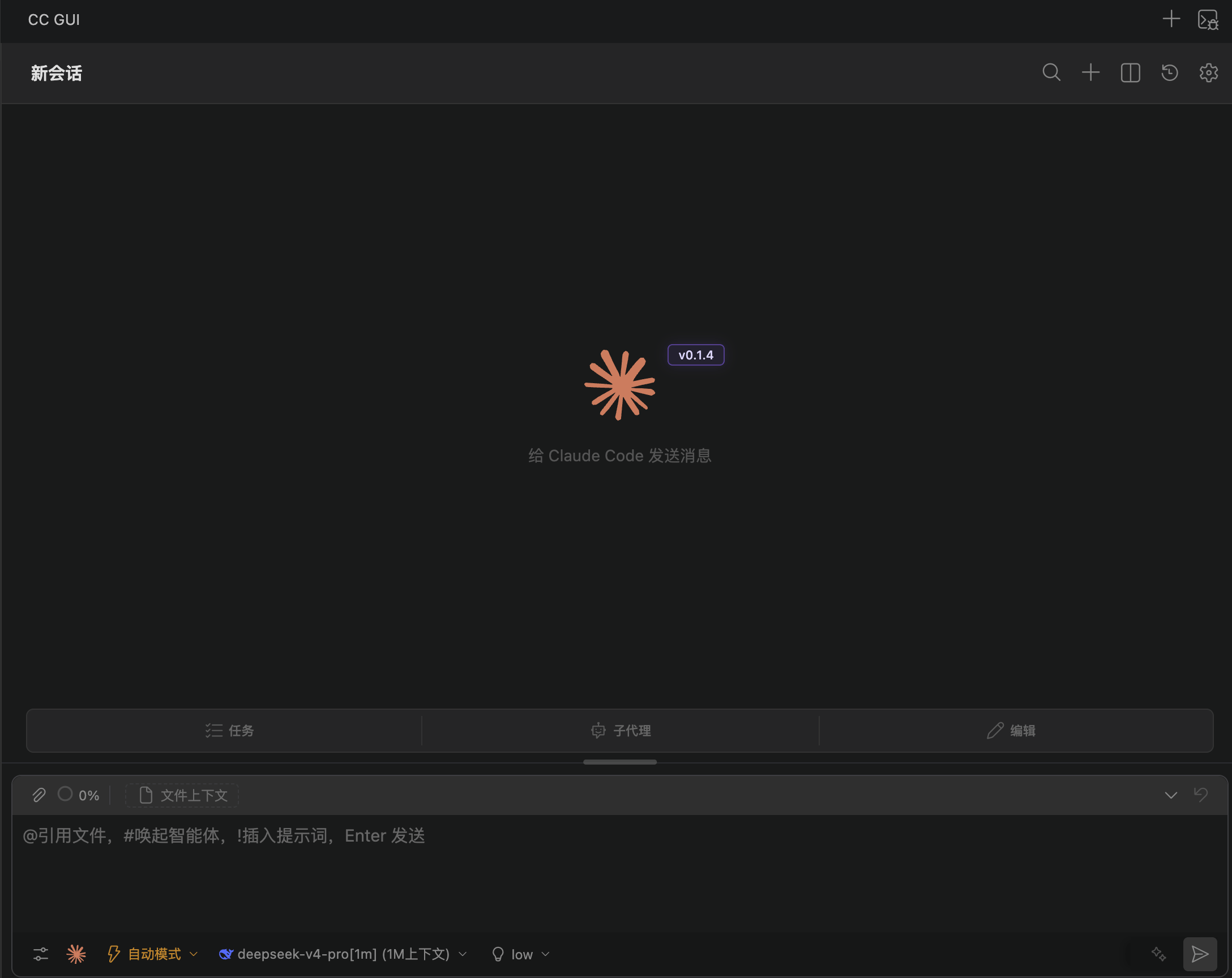
Both entries share the same panel logic and can stay open together. Click the CC GUI icon in the editor title bar, or run CC GUI: Open CC GUI, to focus the left primary view.
Run CC GUI: Hide CC GUI Panel to collapse the sidebar.
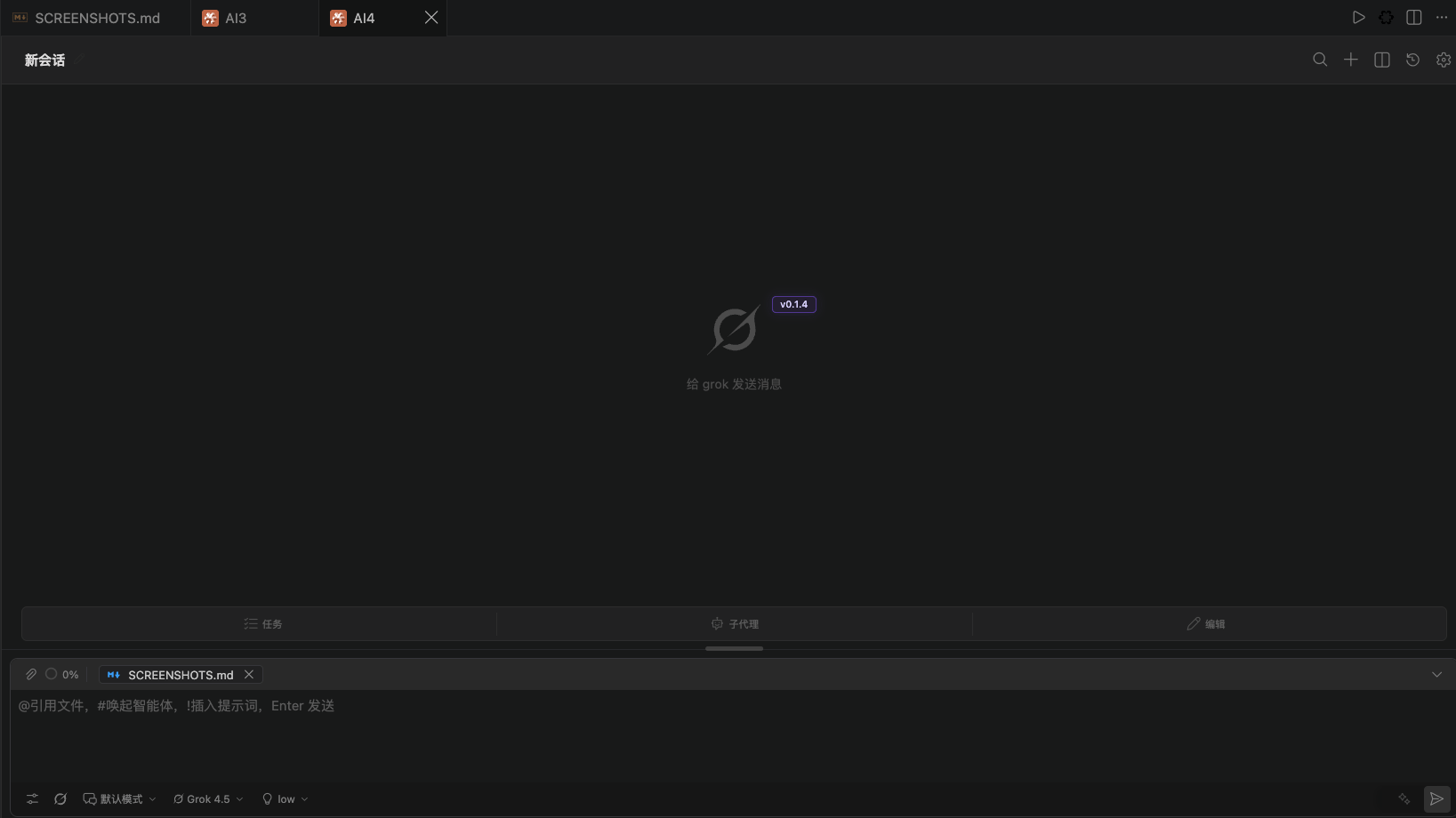
Chat tabs in the editor
Click + in the title bar, or run CC GUI: New Chat Tab, to open another chat tab in the current editor group. It does not split the editor left and right. Each tab is an independent session. You can:- Run several tasks side by side
- Run CC GUI: Rename Active Chat Tab to rename the current tab
- Close it like any other editor tab
Three internal views
The top of the panel switches among three views.Chat
This is the default view. From top to bottom:- Top bar: History, Settings, New session
- Message list, with a welcome screen when the session is empty
- Input box and bottom toolbar: config, provider, model, mode
History
Lists historical sessions for the current workspace. You can search, star, rename, export, delete, or multi-select. Click a history item to load it back into the Chat view.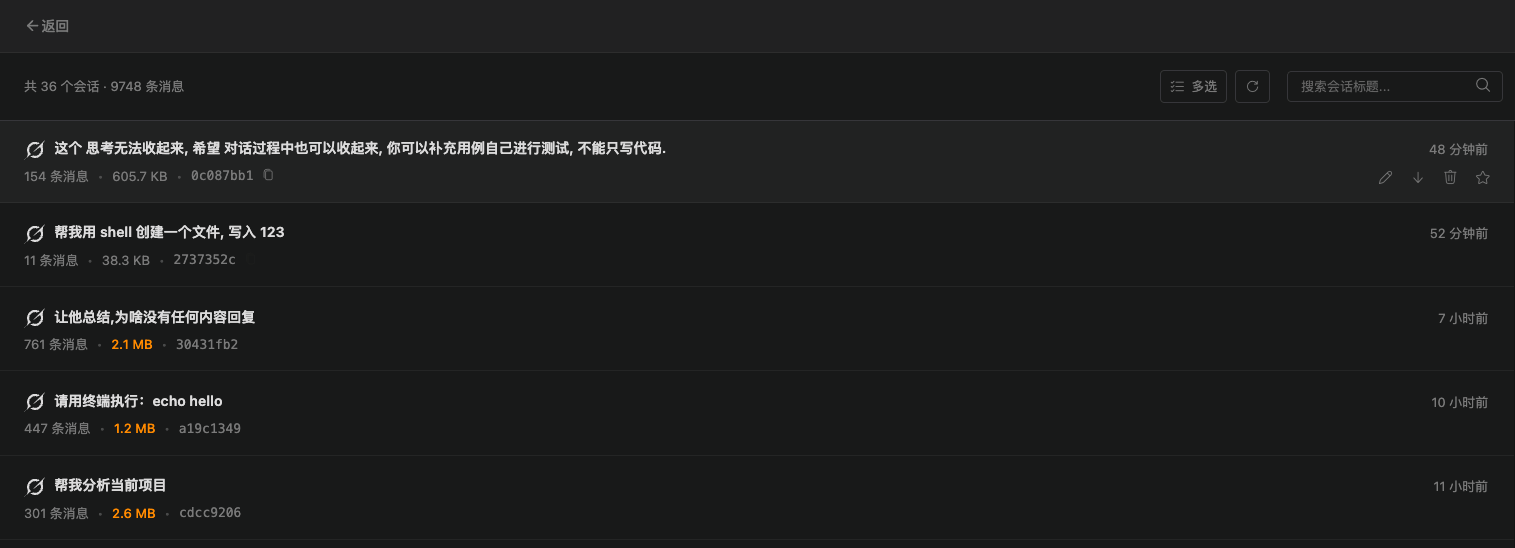
Settings
The left side has 13 entries. The right side is the matching form. You can collapse the sidebar to icons only.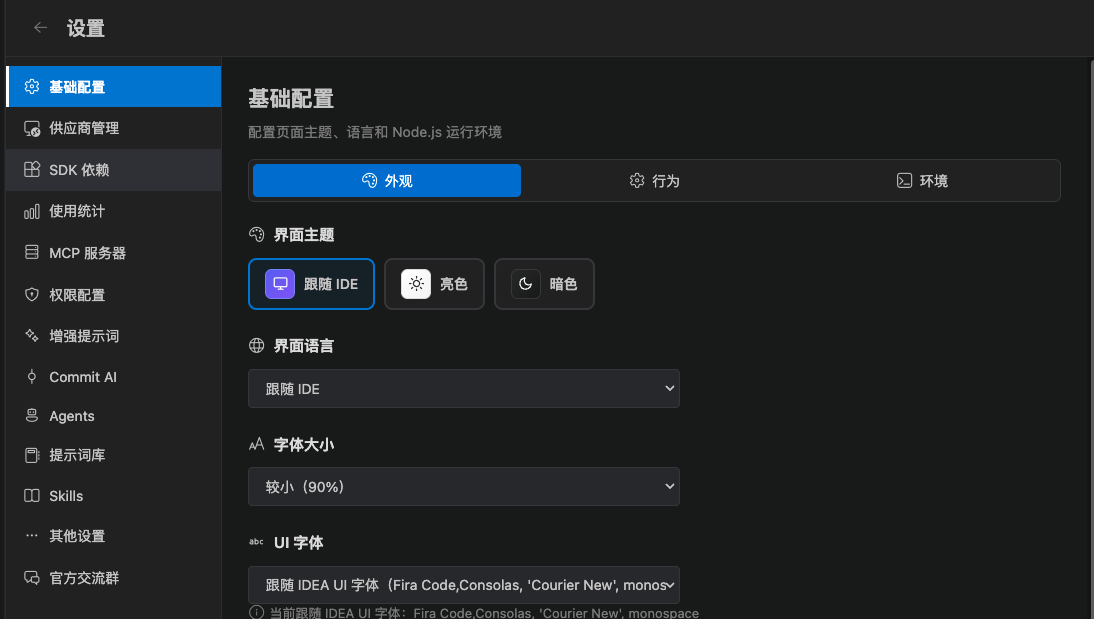
Selectors under the input box
From left to right, the bottom of the Chat view is usually:- Config / process
- Provider
- Model
- Mode
- Attach, stop, send
Everyday layouts
- Write code while you chat: leave CC GUI on the left, or pin it to the right Secondary Side Bar
- Several parallel tasks: open one session per editor tab
- Review an old chat: open History, then load it