

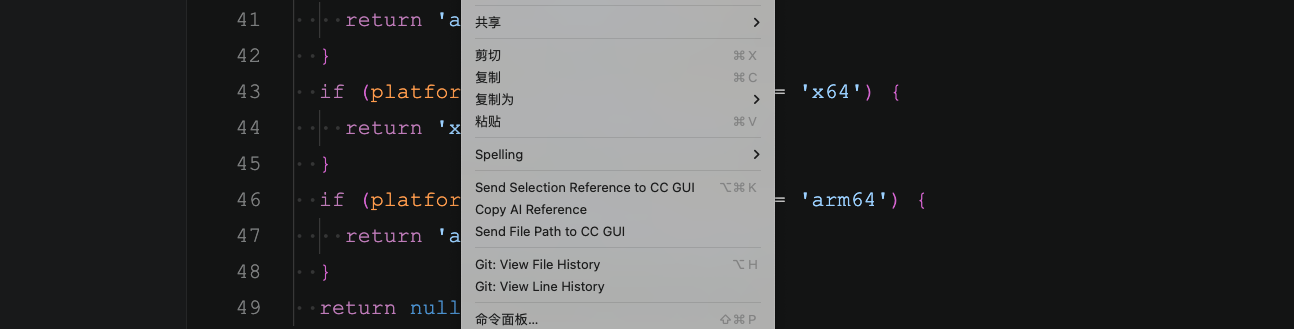
Send a selection
- Select code in the editor
- Right-click and choose Send Selection Reference to Claude
- Or press
Cmd+Alt+K(Windows / Linux:Ctrl+Alt+K)
#L12. If the selection ends at the start of a line, the end line steps back one line so an empty line is not counted.
With no selection, this command only opens the CC GUI panel.
Copy an AI reference
Right-click and choose Copy AI Reference to copy the same@path#Lline to the clipboard, then paste it into another session or tab.
After a successful copy, VS Code shows AI reference copied.
Send a file path
These places can send a file path into the input box:- Editor context menu
- Editor title context menu
- Explorer context menu (multi-select works)
@path mentions.
Dragging a file from Explorer into the input box is similar: a regular file becomes a path mention, and an image becomes an attachment.
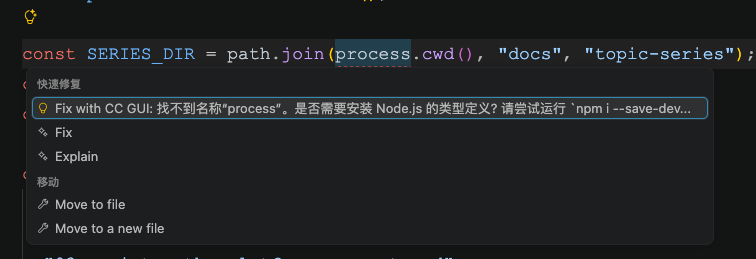
Quick Fix
When a file has diagnostics (red or yellow squiggles):- Click the light bulb
- Choose Fix with Claude: …
- Or press
Cmd+Shift+Q(Windows / Linux:Ctrl+Shift+Q)
- The diagnostic text
- The file and range
- Other Quick Fixes already in the editor
Auto-sync the current file
The VS Code settingccGui.autoSyncActiveFile is on by default: when the active editor file changes, the path is synced to the chat.
CC GUI Settings → General → Behavior → Send the open file path controls whether selecting a file in Explorer inserts the path automatically. Do not mix the two.