

Open the panel
Use any of these:- Click the CC GUI icon in the Activity Bar
- Run CC GUI: Open CC GUI from the Command Palette
- Click the CC GUI icon on the right side of the editor title bar
Choose a provider
Open the provider picker at the bottom of the input box and pick one:
Use Claude Code the first time. Per-engine details are in Providers / CLI.
Add credentials
Open Settings → Provider management.- Claude Code
- Codex
- Local CLI
Three common setups:
- Add provider: enter a name, API key, and base URL. Official Anthropic is
https://api.anthropic.com. - Use local settings.json: authorize reading
~/.claude/settings.json. The extension does not change this file. - Use CLI login: use this when you already signed in with the Claude CLI in a terminal.
Send a short message
Go back to the chat view and type:Enter to send. If you changed the send shortcut to Cmd/Ctrl+Enter, use that instead.
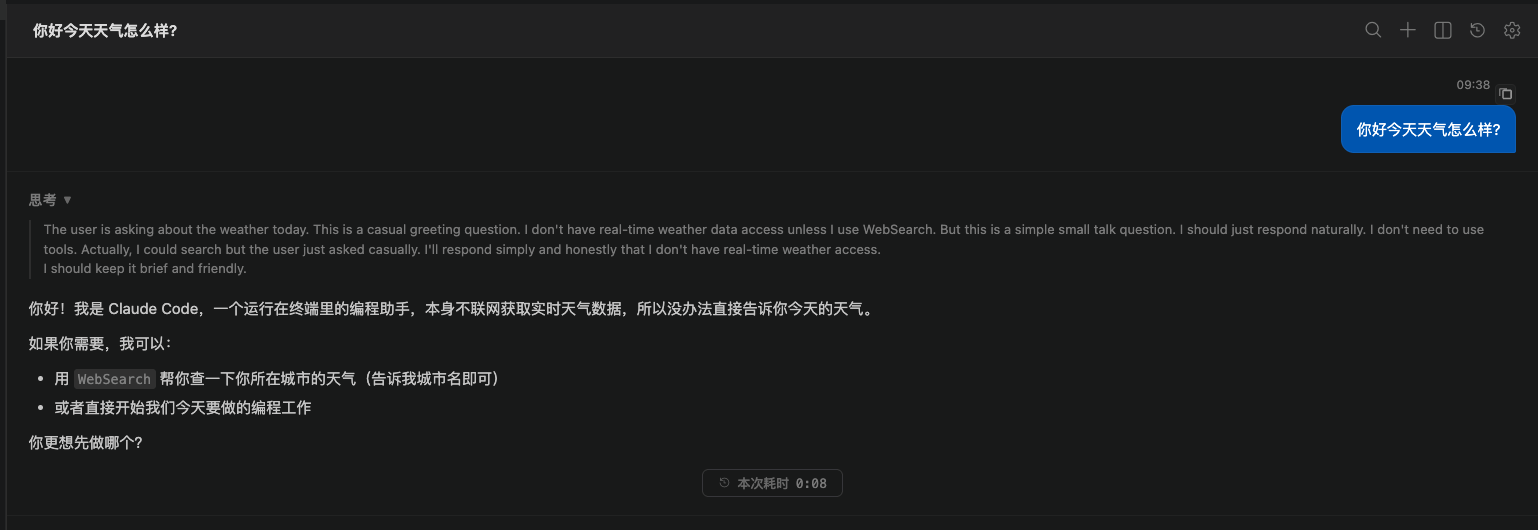
When it works you will see:
- Your message appear in the chat
- The status change to thinking or tool use
- The assistant start streaming a reply
Mentions you can try immediately
Send a code selection from the editor to CC GUI:- Select a few lines
- Right-click and choose Send Selection Reference to Claude, or press
Cmd+Alt+K(Windows / Linux:Ctrl+Alt+K) - The input box inserts
@file-path#Lstart-end - Add “Explain this code”, then send
If nothing comes back
More troubleshooting is in FAQ.