

Home
Launch opens Home. You can:- Search or pick an existing project
- Add project
- See branch / worktree info
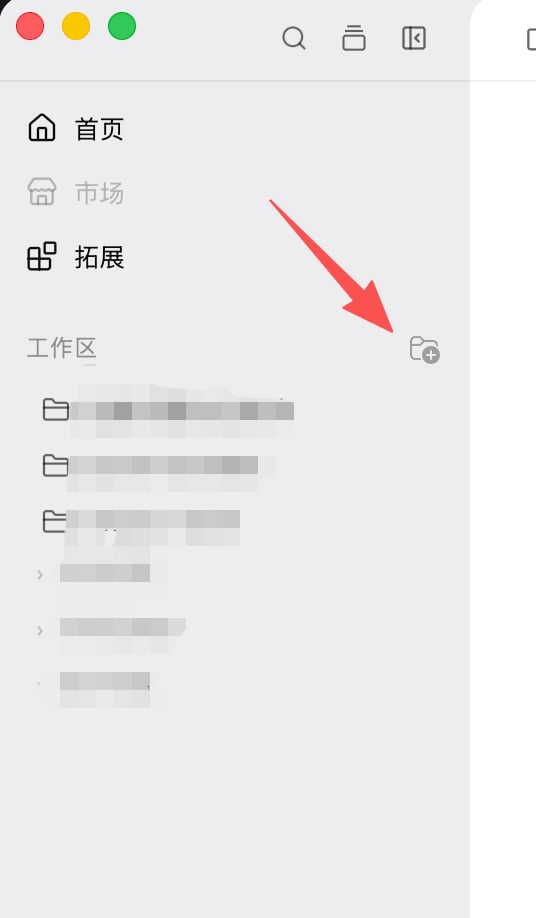
Extensions
In the left bar, click Extensions (same level as Home). The center becomes a top bar: Usage, AI frameworks, Skills, Mcps, and more.
Main window
Typical layout, left to right: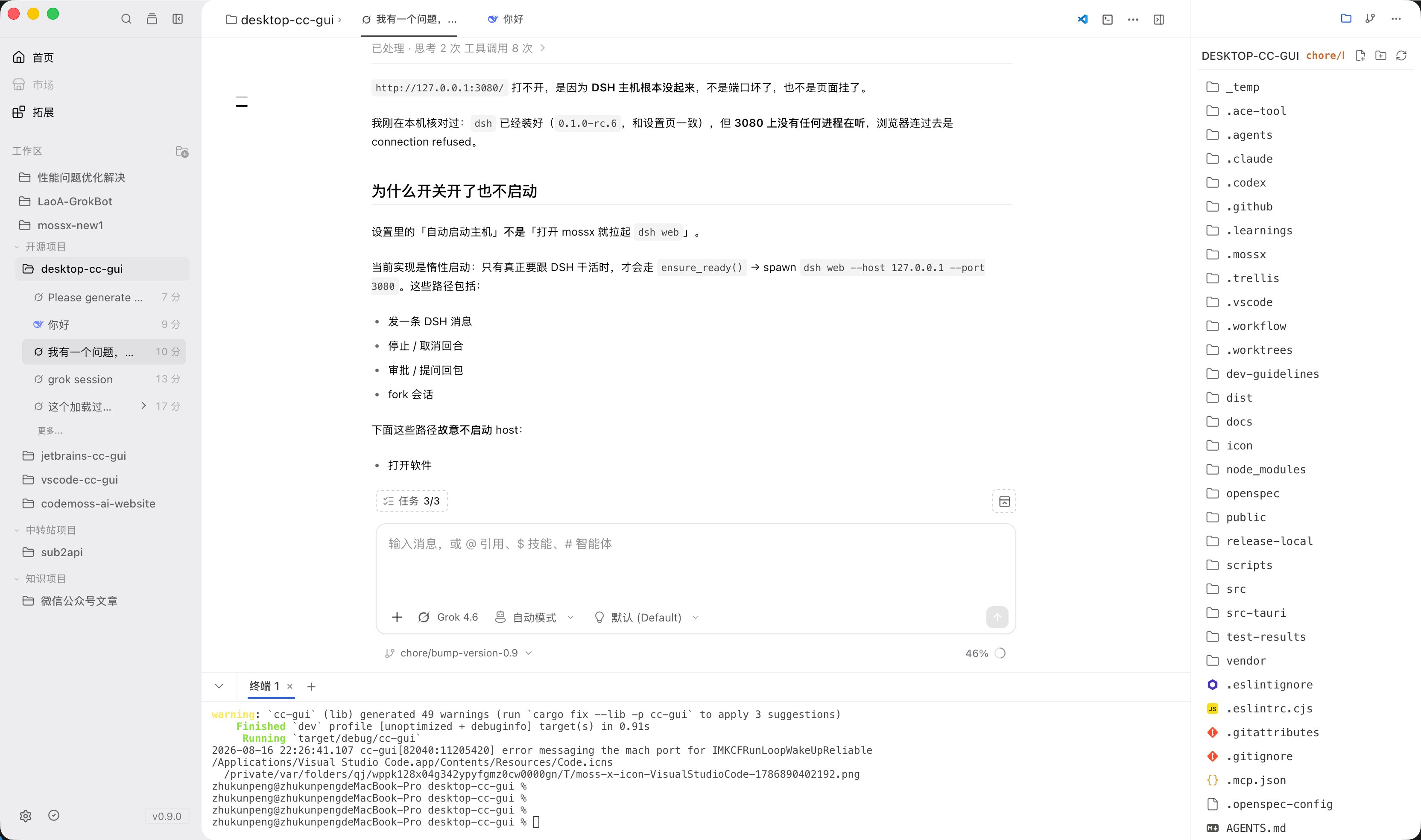
Session list
The left sidebar lists sessions for the current workspace. You can search, star, rename, delete, or start a new session.
Chat canvas
The center is the current session: messages, thinking, tool calls, and diffs. The input sits at the bottom.

File tree
Browse files in the current workspace. You can preview, rename, or drag a file into the input.
Git panel
Review changes, stage, commit, and browse branches and history. You can also generate a commit message with AI.
Terminal
Open a terminal inside the app so you do not switch to an external window. Use it to run commands while you watch AI output.
Global search
One search box covers files, sessions, history messages, skills, and commands.
Settings
After you open Settings, entries are on the left and the matching form is on the right. Providers and CLIs live under CLI configuration.
Next steps
Chat area
Messages, thinking, tool calls, and status.
Input
@, /, attachments, and the bottom pickers.Workspace and panels
File tree, terminal, search, and Plan.
Git and commit
Changes, commits, and AI commit messages.
Extensions
Usage, Skills, and MCP.