

Open a project
- Launch ccgui
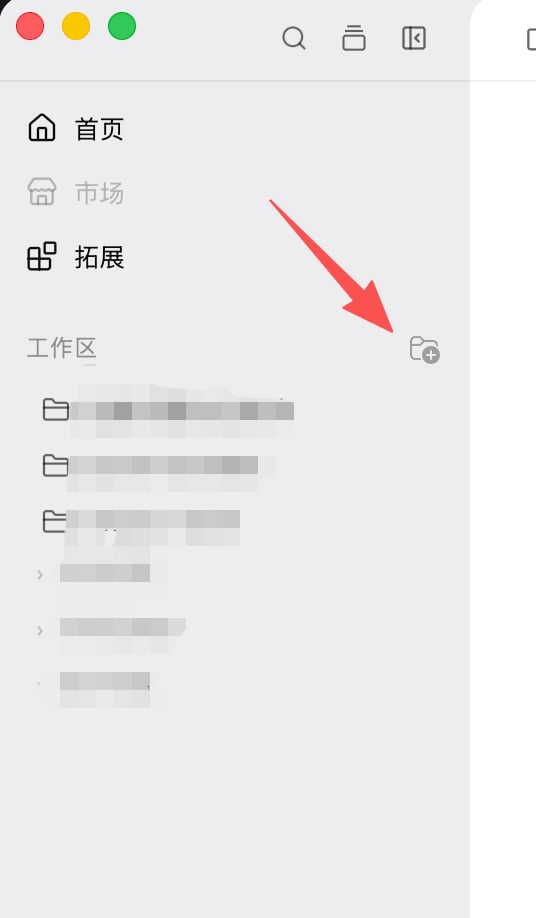
- On Home, pick an existing workspace or Add project
- After you enter the project, the chat canvas is in the middle and the input is at the bottom
Choose a provider
Open the provider / model picker at the bottom of the input and pick one:
For the first try, use Claude Code. Per-engine notes: Providers / CLI.
Send a short message
In the input, type:Enter to send. If you changed the send shortcut to Cmd/Ctrl+Enter, use that instead.
When it works you will see:
- Your message in the chat
- Status change to thinking or tool use
- A streaming assistant reply

References you can try first
- Type
@to search and attach a project file - Drag a file from the file tree into the input
- Type
/to try a slash command - Type
!to try a prompt; pick an agent from the input toolbar; type@@to try project memory

If nothing comes back
More troubleshooting: FAQ.