> ## Documentation Index
> Fetch the complete documentation index at: https://docs.mossx.ai/llms.txt
> Use this file to discover all available pages before exploring further.
# Claude Code
> 為 Claude Code 配置託管供應商、本地配置或 CLI 登入。
Claude Code 是客戶端功能最完整的主線 runtime:許可權彈窗、規劃、MCP、Skills、回退 / 分叉都從這裡走。
## 接入方式
開啟 **設定 → CLI配置管理 → Claude Code CLI**:
1. **新增供應商**:名稱、API Key、Base URL、模型對映。託管配置寫在 `~/.ccgui/config.json`,不改 `~/.claude/settings.json`
2. **使用本地 settings.json**:沒有第三方供應商時,預設讀 `~/.claude/settings.json`
3. **CLI 登入**:訂閱制賬號先在終端登入 Claude CLI,再讓客戶端複用登入態
4. **第三方 / 代理預設**:智譜、Kimi、DeepSeek、MiniMax、OpenRouter、百鍊、LongCat、OpenCode Go 等
官方直連把請求發到 Anthropic。第三方預設立刻轉到對應端點,並在 UI 中標明路由方式。未安裝 `claude` 時,可在該頁點 **安裝**。可覆蓋 Claude CLI 路徑。
## 安裝
macOS / Linux:
```bash theme={null}
curl -fsSL https://claude.ai/install.sh | bash
```
Windows PowerShell:
```powershell theme={null}
irm https://claude.ai/install.ps1 | iex
```
文件:[Claude Code CLI](https://code.claude.com/docs/en/cli-reference)
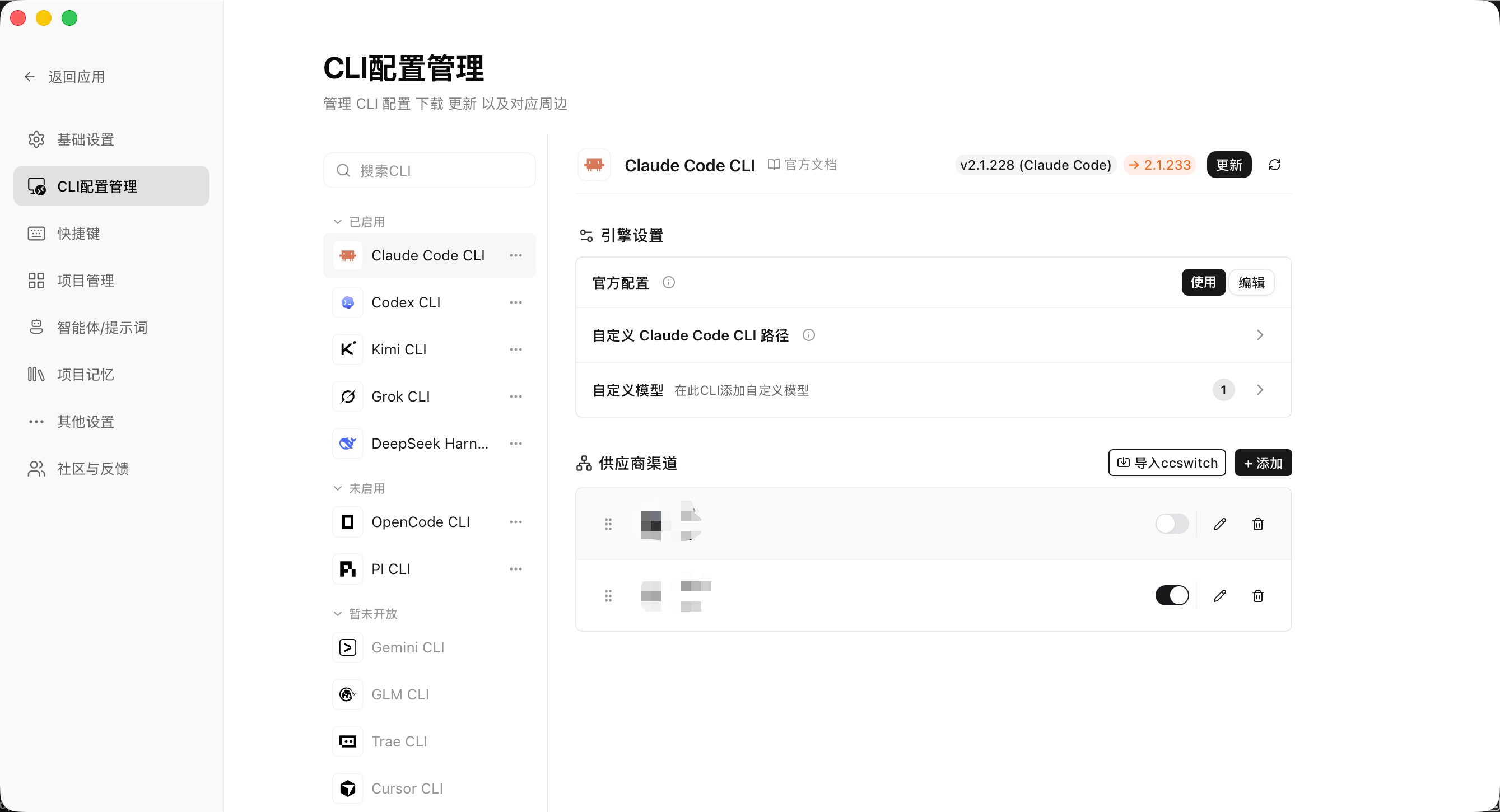 配置只存在你的電腦上。客戶端不會把 Key 上傳到 CC GUI 自己的伺服器。
## 模型與統計
模型選擇器列出當前 profile 的模型。可 pin 常用模型,並補價格供使用統計估算費用。
## 工作目錄與授權
* 預設工作目錄是當前工作區根
* 越界讀寫可能觸發 [目錄授權](/zh-Hant/desktop/chat/modes#目錄授權directory-grant)
* 可在設定中覆蓋 Claude CLI 路徑(高階)
## 下一步
* [多供應商總覽](/zh-Hant/desktop/providers/overview)
* [檢測與安裝](/zh-Hant/desktop/providers/cli)
* [執行模式與許可權](/zh-Hant/desktop/chat/modes)
* [MCP](/zh-Hant/desktop/customize/mcp)
* [Skills](/zh-Hant/desktop/customize/skills)
配置只存在你的電腦上。客戶端不會把 Key 上傳到 CC GUI 自己的伺服器。
## 模型與統計
模型選擇器列出當前 profile 的模型。可 pin 常用模型,並補價格供使用統計估算費用。
## 工作目錄與授權
* 預設工作目錄是當前工作區根
* 越界讀寫可能觸發 [目錄授權](/zh-Hant/desktop/chat/modes#目錄授權directory-grant)
* 可在設定中覆蓋 Claude CLI 路徑(高階)
## 下一步
* [多供應商總覽](/zh-Hant/desktop/providers/overview)
* [檢測與安裝](/zh-Hant/desktop/providers/cli)
* [執行模式與許可權](/zh-Hant/desktop/chat/modes)
* [MCP](/zh-Hant/desktop/customize/mcp)
* [Skills](/zh-Hant/desktop/customize/skills)