> ## Documentation Index
> Fetch the complete documentation index at: https://docs.mossx.ai/llms.txt
> Use this file to discover all available pages before exploring further.
# Prepare your environment
> Set up Node.js 20+, the Claude / Codex SDKs, and optional local CLIs for CC GUI.
Installing the extension is not enough to chat. CC GUI starts AI runtimes through local Node.js: Claude and Codex use SDKs; Grok / Kimi / OpenCode / Pi use CLIs you already installed.
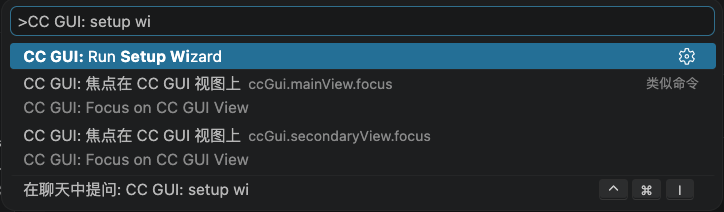
The first time you open CC GUI, run **CC GUI: Run Setup Wizard** from the Command Palette. The wizard checks Node, prompts you to install missing SDKs, and walks you to the sidebar to configure providers.
 ## 1. Install Node.js 20+
CC GUI requires **Node.js major version ≥ 20**. This path is only for the extension. It does not change the Node version in your project terminal.
Your project can keep using Node 16 or 18. Install a separate Node 20+, then paste the executable path into CC GUI.
Use the official installer, nvm, fnm, or your system package manager. Then run this in that environment:
```bash theme={null}
node -p "process.execPath"
```
Copy the full path. On Windows it must point to `node.exe`.
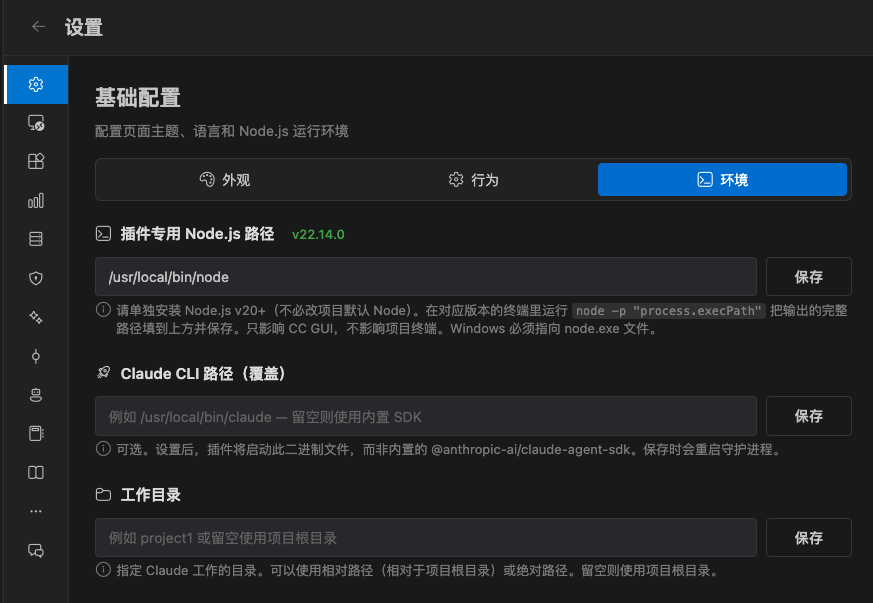
Open CC GUI → **Settings** → **General** → **Environment**, paste the path into **Extension-only Node.js path**, then click **Save**.
You can also search `ccGui.nodePath` in VS Code settings. If you leave it empty, the extension tries to detect `node` on your PATH.
## 1. Install Node.js 20+
CC GUI requires **Node.js major version ≥ 20**. This path is only for the extension. It does not change the Node version in your project terminal.
Your project can keep using Node 16 or 18. Install a separate Node 20+, then paste the executable path into CC GUI.
Use the official installer, nvm, fnm, or your system package manager. Then run this in that environment:
```bash theme={null}
node -p "process.execPath"
```
Copy the full path. On Windows it must point to `node.exe`.
Open CC GUI → **Settings** → **General** → **Environment**, paste the path into **Extension-only Node.js path**, then click **Save**.
You can also search `ccGui.nodePath` in VS Code settings. If you leave it empty, the extension tries to detect `node` on your PATH.
 Common cases:
| Symptom | What to do |
| --------------------------- | --------------------------------------------------------------------- |
| Node not detected | Install Node 20+ and enter the full path |
| Detected version is too old | Install a separate Node 20+. Do not change the project's default Node |
| Windows path is invalid | It must point to `node.exe`, not a directory |
## 2. Install the Claude / Codex SDKs
Claude Code and Codex need their SDKs. The extension installs them under your user directory:
```text theme={null}
~/.codemoss/dependencies/claude-sdk
~/.codemoss/dependencies/codex-sdk
```
The npm packages are:
* Claude: `@anthropic-ai/claude-agent-sdk`
* Codex: `@openai/codex-sdk`
In CC GUI, click **Settings** → **SDK dependencies**.
Click **Install** for each missing SDK. You can also select them in the setup wizard and let it install them.
After install you should see the current version. Codex also checks CLI integrity. If that check fails, the status stays **Not installed**.
Common cases:
| Symptom | What to do |
| --------------------------- | --------------------------------------------------------------------- |
| Node not detected | Install Node 20+ and enter the full path |
| Detected version is too old | Install a separate Node 20+. Do not change the project's default Node |
| Windows path is invalid | It must point to `node.exe`, not a directory |
## 2. Install the Claude / Codex SDKs
Claude Code and Codex need their SDKs. The extension installs them under your user directory:
```text theme={null}
~/.codemoss/dependencies/claude-sdk
~/.codemoss/dependencies/codex-sdk
```
The npm packages are:
* Claude: `@anthropic-ai/claude-agent-sdk`
* Codex: `@openai/codex-sdk`
In CC GUI, click **Settings** → **SDK dependencies**.
Click **Install** for each missing SDK. You can also select them in the setup wizard and let it install them.
After install you should see the current version. Codex also checks CLI integrity. If that check fails, the status stays **Not installed**.
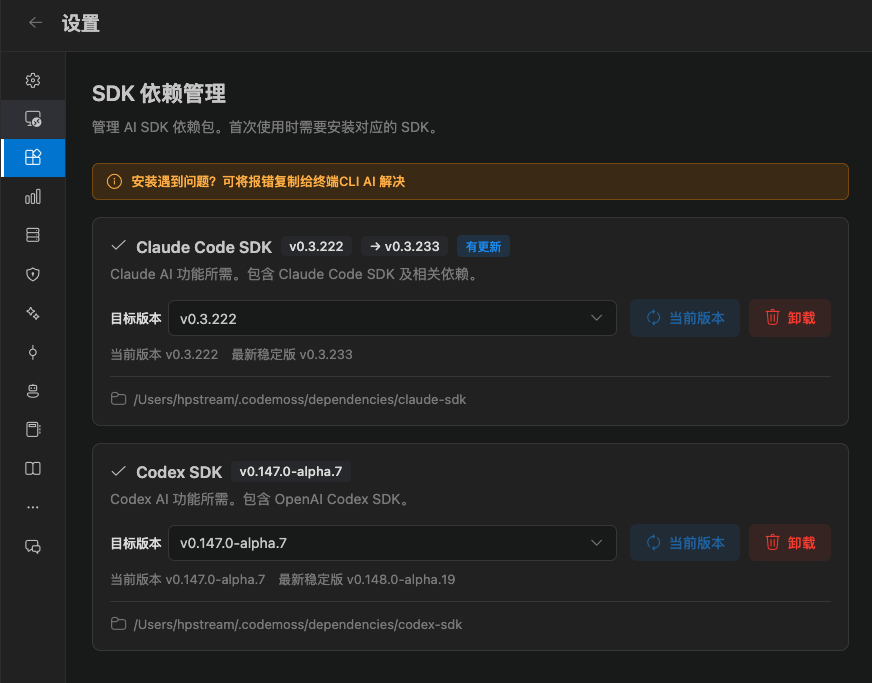 If the chat area says the SDK is not installed, click **Go to install** to jump to this page.
## 3. Install local CLIs as needed
The extension does **not** install Grok, Kimi, OpenCode, or Pi for you. Install each one in a system terminal, confirm the command works, then go to **Settings → Provider management → CLI** and click **Detect again**.
Install commands live on each engine page:
| Engine | Install guide |
| -------- | ----------------------------------------------------------------------------- |
| Kimi | [Install](/en/vscode/providers/kimi#install) |
| Grok | [Install](/en/vscode/providers/grok#install) (use WSL or Git Bash on Windows) |
| OpenCode | [Install](/en/vscode/providers/opencode#install) |
| Pi | [Install](/en/vscode/providers/pi#install) |
Skip this step if you only want Claude or Codex first. For detection and PATH troubleshooting, see [Detect and install](/en/vscode/providers/cli).
## 4. Finish the wizard
At the end, the wizard tells you to configure a Claude or Codex provider in the sidebar. Click **Open Side Panel**, or open CC GUI yourself.
Next: [Send the first message](/en/vscode/start/first-task).
If the chat area says the SDK is not installed, click **Go to install** to jump to this page.
## 3. Install local CLIs as needed
The extension does **not** install Grok, Kimi, OpenCode, or Pi for you. Install each one in a system terminal, confirm the command works, then go to **Settings → Provider management → CLI** and click **Detect again**.
Install commands live on each engine page:
| Engine | Install guide |
| -------- | ----------------------------------------------------------------------------- |
| Kimi | [Install](/en/vscode/providers/kimi#install) |
| Grok | [Install](/en/vscode/providers/grok#install) (use WSL or Git Bash on Windows) |
| OpenCode | [Install](/en/vscode/providers/opencode#install) |
| Pi | [Install](/en/vscode/providers/pi#install) |
Skip this step if you only want Claude or Codex first. For detection and PATH troubleshooting, see [Detect and install](/en/vscode/providers/cli).
## 4. Finish the wizard
At the end, the wizard tells you to configure a Claude or Codex provider in the sidebar. Click **Open Side Panel**, or open CC GUI yourself.
Next: [Send the first message](/en/vscode/start/first-task).