> ## Documentation Index
> Fetch the complete documentation index at: https://docs.mossx.ai/llms.txt
> Use this file to discover all available pages before exploring further.
# Learn the interface
> Learn the CC GUI sidebar, editor tabs, and the Chat, History, and Settings views.
CC GUI has two host entries in VS Code. Inside the panel there are three views. Learn the entries first, then the three views.
## Two host entries
| Entry | Location | Use |
| -------------- | ------------------------ | ----------------------------------------------------------------- |
| Primary view | Left Activity Bar | Everyday entry point |
| Secondary view | Right Secondary Side Bar | Pin the chat on the right while you keep reading code on the left |
Both entries share the same panel logic and can stay open together. Click the CC GUI icon in the editor title bar, or run **CC GUI: Open CC GUI**, to focus the left primary view.
Run **CC GUI: Hide CC GUI Panel** to collapse the sidebar.
 ## Chat tabs in the editor
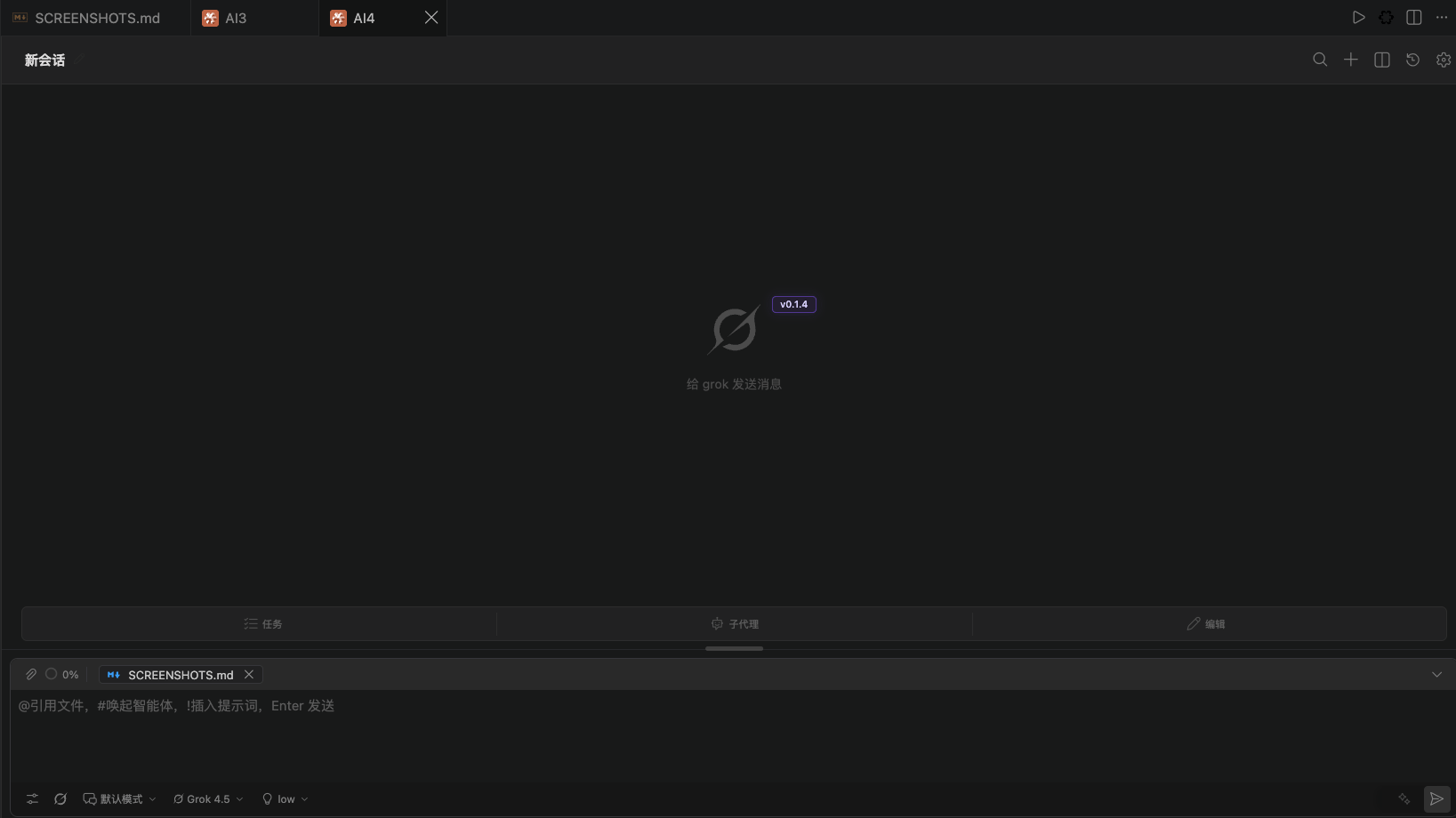
Click **+** in the title bar, or run **CC GUI: New Chat Tab**, to open another chat tab in the **current editor group**. It does not split the editor left and right.
Each tab is an independent session. You can:
* Run several tasks side by side
* Run **CC GUI: Rename Active Chat Tab** to rename the current tab
* Close it like any other editor tab
## Chat tabs in the editor
Click **+** in the title bar, or run **CC GUI: New Chat Tab**, to open another chat tab in the **current editor group**. It does not split the editor left and right.
Each tab is an independent session. You can:
* Run several tasks side by side
* Run **CC GUI: Rename Active Chat Tab** to rename the current tab
* Close it like any other editor tab
 ## Three internal views
The top of the panel switches among three views.
### Chat
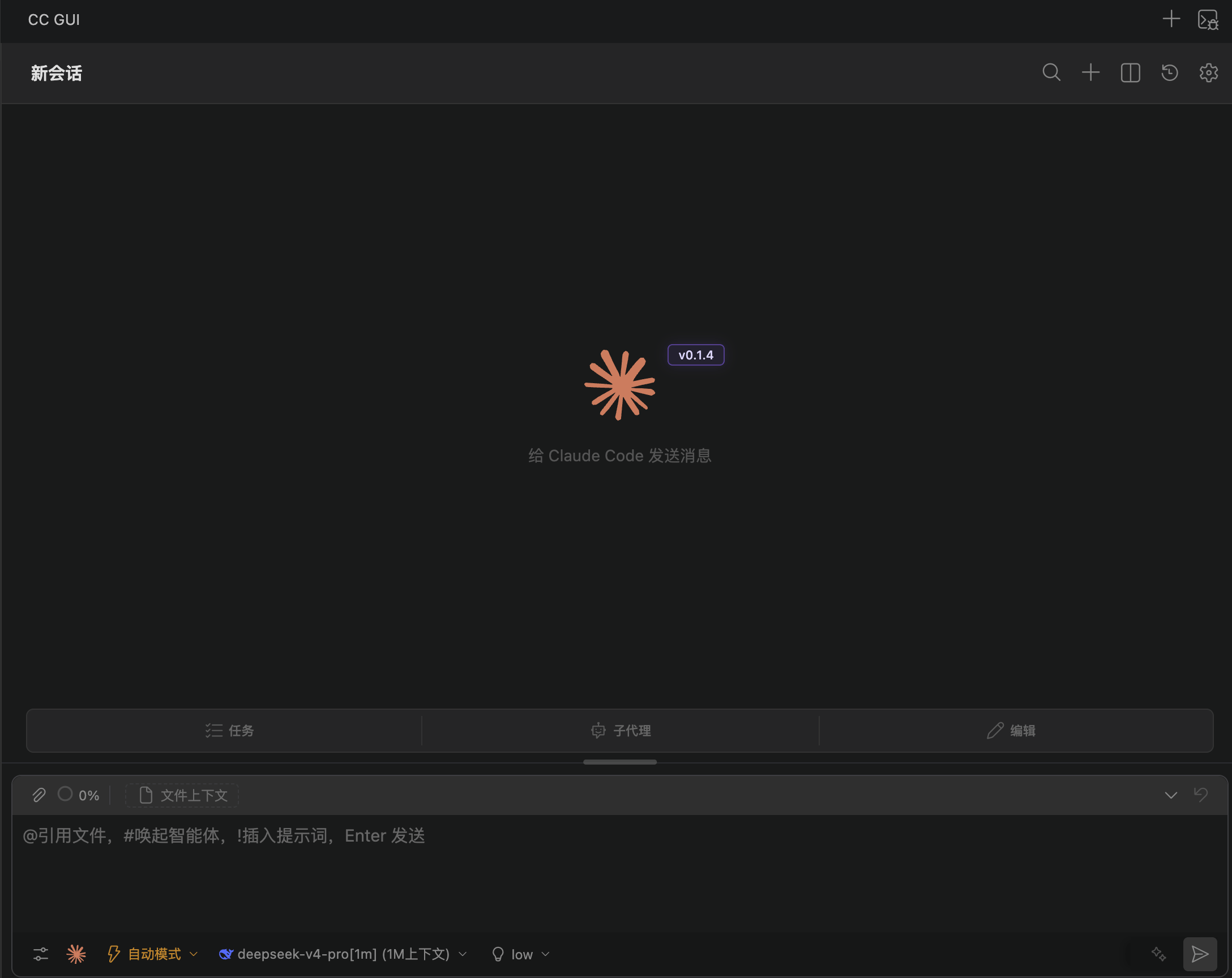
This is the default view. From top to bottom:
1. Top bar: History, Settings, New session
2. Message list, with a welcome screen when the session is empty
3. Input box and bottom toolbar: config, provider, model, mode
See [Chat area](/en/vscode/chat/overview) and [Input box](/en/vscode/chat/input).
### History
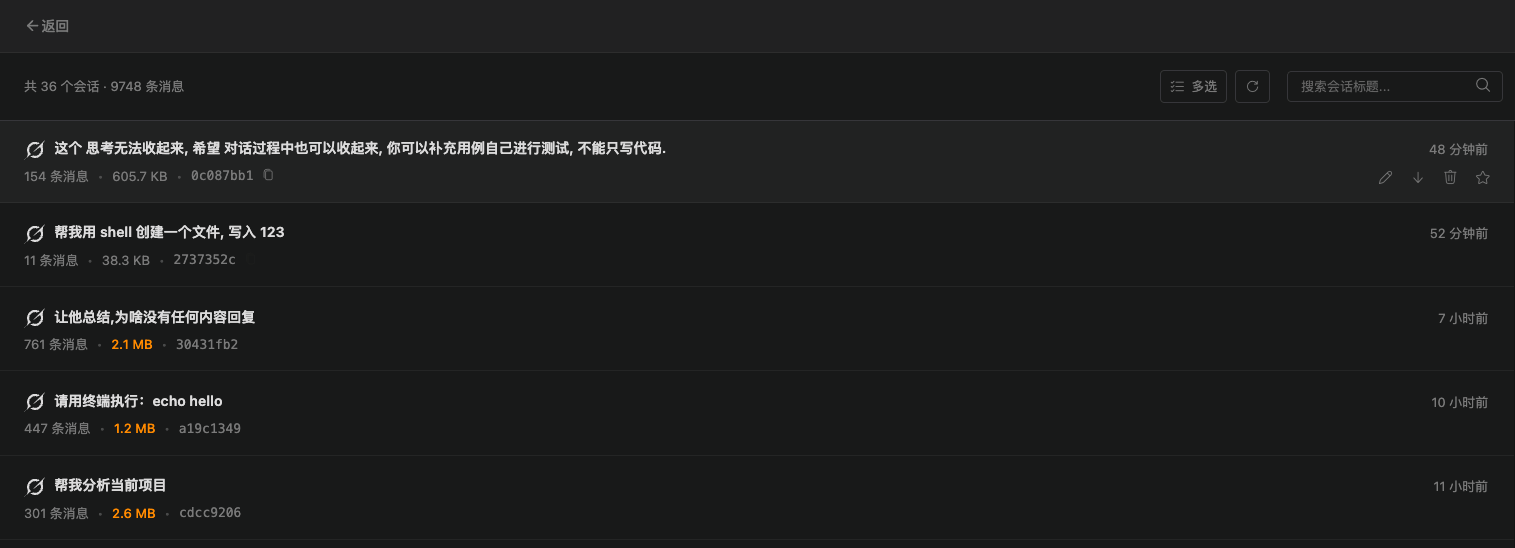
Lists historical sessions for the current workspace. You can search, star, rename, export, delete, or multi-select.
Click a history item to load it back into the Chat view.
## Three internal views
The top of the panel switches among three views.
### Chat
This is the default view. From top to bottom:
1. Top bar: History, Settings, New session
2. Message list, with a welcome screen when the session is empty
3. Input box and bottom toolbar: config, provider, model, mode
See [Chat area](/en/vscode/chat/overview) and [Input box](/en/vscode/chat/input).
### History
Lists historical sessions for the current workspace. You can search, star, rename, export, delete, or multi-select.
Click a history item to load it back into the Chat view.
 See [Sessions, tabs, and history](/en/vscode/chat/sessions).
### Settings
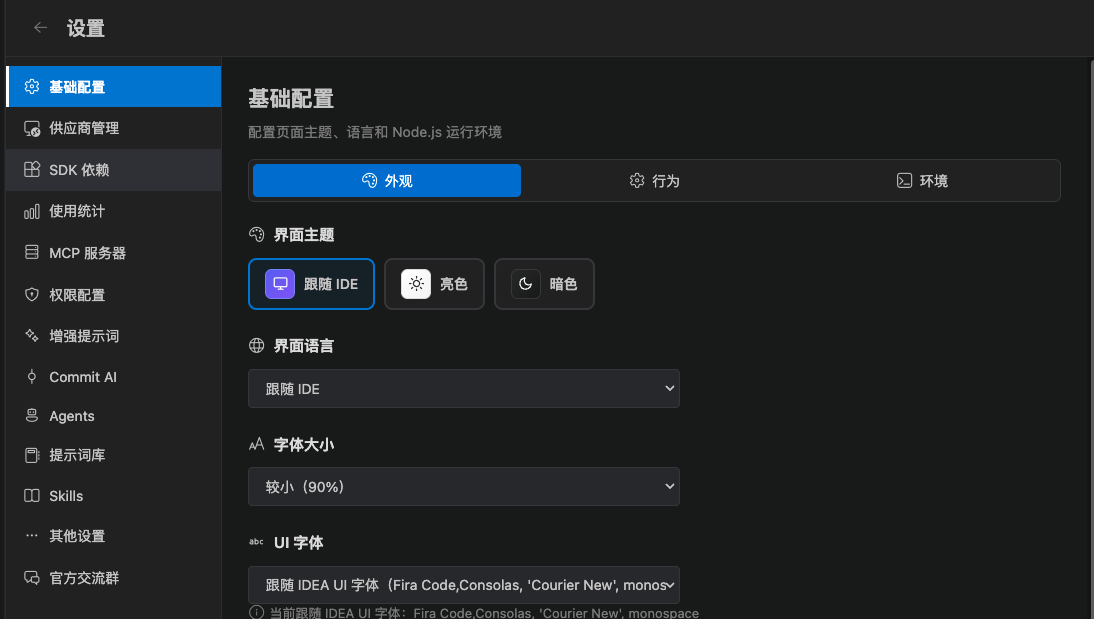
The left side has 13 entries. The right side is the matching form. You can collapse the sidebar to icons only.
| Entry | What it does |
| ------------------- | -------------------------------------------------------- |
| General | Theme, language, Node path, send shortcut, notifications |
| Provider management | Claude / Codex / CLI |
| SDK dependencies | Install and update SDKs |
| Usage | Tokens and cost |
| MCP servers | Add, marketplace, import, enable or disable |
| Permissions | Claude / Codex permissions and sandbox |
| Prompt enhancer | Model used to rewrite before send |
| Commit AI | Generate commit messages |
| Agents | Custom agents |
| Prompt library | Templates inserted with `!` |
| Skills | Skill packs |
| Other | History completion, auto titles |
| Community | WeChat group, GitHub, changelog |
See [Sessions, tabs, and history](/en/vscode/chat/sessions).
### Settings
The left side has 13 entries. The right side is the matching form. You can collapse the sidebar to icons only.
| Entry | What it does |
| ------------------- | -------------------------------------------------------- |
| General | Theme, language, Node path, send shortcut, notifications |
| Provider management | Claude / Codex / CLI |
| SDK dependencies | Install and update SDKs |
| Usage | Tokens and cost |
| MCP servers | Add, marketplace, import, enable or disable |
| Permissions | Claude / Codex permissions and sandbox |
| Prompt enhancer | Model used to rewrite before send |
| Commit AI | Generate commit messages |
| Agents | Custom agents |
| Prompt library | Templates inserted with `!` |
| Skills | Skill packs |
| Other | History completion, auto titles |
| Community | WeChat group, GitHub, changelog |
 For the full map, see [Settings overview](/en/vscode/settings/overview).
## Selectors under the input box
From left to right, the bottom of the Chat view is usually:
* Config / process
* Provider
* Model
* Mode
* Attach, stop, send
These selectors decide who handles this request, which model to use, and whether files can change automatically. See [Modes and permissions](/en/vscode/chat/modes).
## Everyday layouts
* Write code while you chat: leave CC GUI on the left, or pin it to the right Secondary Side Bar
* Several parallel tasks: open one session per editor tab
* Review an old chat: open History, then load it
Continue with [Chat area](/en/vscode/chat/overview) or [Input box](/en/vscode/chat/input).
For the full map, see [Settings overview](/en/vscode/settings/overview).
## Selectors under the input box
From left to right, the bottom of the Chat view is usually:
* Config / process
* Provider
* Model
* Mode
* Attach, stop, send
These selectors decide who handles this request, which model to use, and whether files can change automatically. See [Modes and permissions](/en/vscode/chat/modes).
## Everyday layouts
* Write code while you chat: leave CC GUI on the left, or pin it to the right Secondary Side Bar
* Several parallel tasks: open one session per editor tab
* Review an old chat: open History, then load it
Continue with [Chat area](/en/vscode/chat/overview) or [Input box](/en/vscode/chat/input).