> ## Documentation Index
> Fetch the complete documentation index at: https://docs.mossx.ai/llms.txt
> Use this file to discover all available pages before exploring further.
# Claude Code
> Configure Claude Code with official direct access, a third-party proxy, local settings.json, or CLI login.
Claude Code is the most complete runtime: all four modes, MCP, Skills, plan approval, and the full permission dialogs go through here.
Install the Claude Agent SDK in **Settings → SDK dependencies** first, then configure a provider.
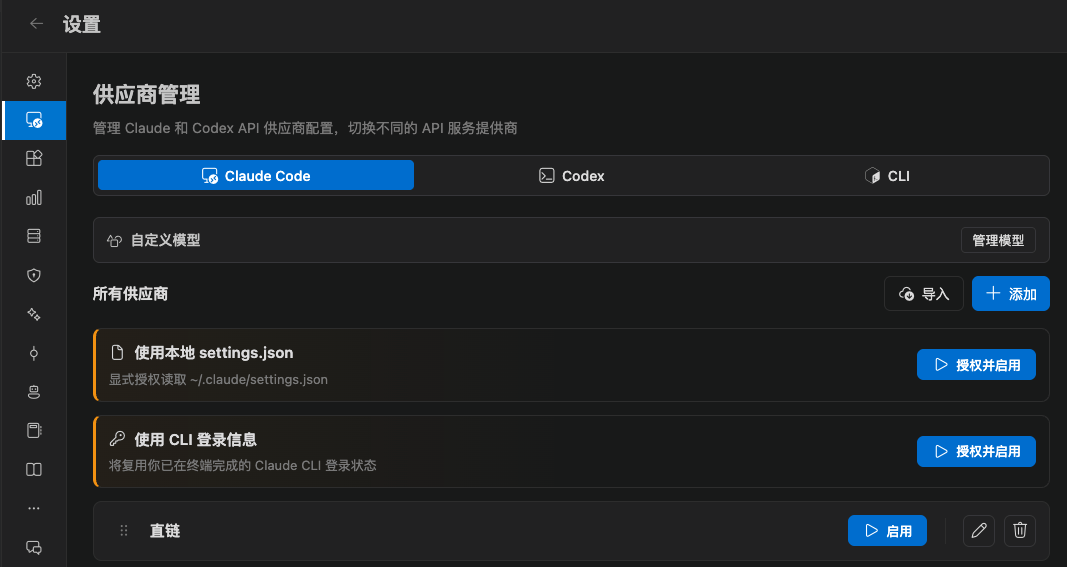 ## Four ways to connect
### 1. Add a provider (most common)
Click **Add provider** and fill in:
* Provider name
* API key
* Request URL (official direct is always `https://api.anthropic.com`)
* Optional: primary model, Haiku / Sonnet / Opus / Fable mappings, custom models
There is a visual form and a JSON editor. JSON can include full `settings.json` fields.
Official direct sends requests to Anthropic. A third-party preset immediately routes them to that proxy endpoint.
Built-in presets include Zhipu GLM, Kimi, DeepSeek, MiniMax, Xiaomi MiMo, Alibaba Qwen, OpenRouter, Bailian, LongCat, OpenCode Go, and more. After you pick a preset you still enter your own key.
These settings stay on your computer. The extension does not upload keys to a CC GUI server.
### 2. Use local settings.json
Use this if you already maintain `~/.claude/settings.json`.
* The extension does **not** read this file by default
* It reads once after you click **Authorize and enable**
* The extension does not modify the file
* You can revoke access at any time. After that, Claude stays disabled until you enable another provider
If it still says there is no usable config after you authorize, check that the file actually has an API key or request URL.
### 3. Use CLI login
Use this for a Claude subscription account:
1. Sign in to the Claude CLI in a system terminal and confirm you can ask a question
2. Keep `env` empty in `~/.claude/settings.json`
3. In CC GUI, authorize **Use CLI login**
4. Restart VS Code if you hit a problem
If that still fails, you can temporarily set local `env` to a proxy:
```json theme={null}
{
"env": {
"HTTP_PROXY": "http://127.0.0.1:7897",
"HTTPS_PROXY": "http://127.0.0.1:7897"
}
}
```
If it still fails, report it on [GitHub Issues](https://github.com/hpstream/vscode-cc-gui/issues).
### 4. Import from another tool
The provider page supports:
* Import from a cc-switch database or CLI
* Import from Claude Code Router
Before import it lists new and updated items. Confirm, then write. Editing a cc-switch-sourced config does not write back to cc-switch, and a later import may overwrite it. Convert it to an extension-local config before you edit.
## Models
The model picker under the input box lists models for the current provider. Custom models come first.
In **Settings → Provider management** you can also add prices to existing models (USD / million tokens) so Usage can estimate cost. Models that come from a provider or `settings.json` can only have their price changed. You cannot delete them here.
## Working directory and CLI override
In **Settings → General → Environment**:
* **Working directory**: relative to the workspace root, or an absolute path. Leave empty to use the workspace root
* **Claude CLI path (override)**: when set, the extension starts that binary instead of the bundled SDK. Saving restarts the daemon
Most people do not need the CLI override.
## Next steps
* [Provider overview](/en/vscode/providers/overview)
* [Detect and install](/en/vscode/providers/cli)
* [Modes and permissions](/en/vscode/chat/modes)
* [MCP](/en/vscode/customize/mcp)
* [Skills](/en/vscode/customize/skills)
## Four ways to connect
### 1. Add a provider (most common)
Click **Add provider** and fill in:
* Provider name
* API key
* Request URL (official direct is always `https://api.anthropic.com`)
* Optional: primary model, Haiku / Sonnet / Opus / Fable mappings, custom models
There is a visual form and a JSON editor. JSON can include full `settings.json` fields.
Official direct sends requests to Anthropic. A third-party preset immediately routes them to that proxy endpoint.
Built-in presets include Zhipu GLM, Kimi, DeepSeek, MiniMax, Xiaomi MiMo, Alibaba Qwen, OpenRouter, Bailian, LongCat, OpenCode Go, and more. After you pick a preset you still enter your own key.
These settings stay on your computer. The extension does not upload keys to a CC GUI server.
### 2. Use local settings.json
Use this if you already maintain `~/.claude/settings.json`.
* The extension does **not** read this file by default
* It reads once after you click **Authorize and enable**
* The extension does not modify the file
* You can revoke access at any time. After that, Claude stays disabled until you enable another provider
If it still says there is no usable config after you authorize, check that the file actually has an API key or request URL.
### 3. Use CLI login
Use this for a Claude subscription account:
1. Sign in to the Claude CLI in a system terminal and confirm you can ask a question
2. Keep `env` empty in `~/.claude/settings.json`
3. In CC GUI, authorize **Use CLI login**
4. Restart VS Code if you hit a problem
If that still fails, you can temporarily set local `env` to a proxy:
```json theme={null}
{
"env": {
"HTTP_PROXY": "http://127.0.0.1:7897",
"HTTPS_PROXY": "http://127.0.0.1:7897"
}
}
```
If it still fails, report it on [GitHub Issues](https://github.com/hpstream/vscode-cc-gui/issues).
### 4. Import from another tool
The provider page supports:
* Import from a cc-switch database or CLI
* Import from Claude Code Router
Before import it lists new and updated items. Confirm, then write. Editing a cc-switch-sourced config does not write back to cc-switch, and a later import may overwrite it. Convert it to an extension-local config before you edit.
## Models
The model picker under the input box lists models for the current provider. Custom models come first.
In **Settings → Provider management** you can also add prices to existing models (USD / million tokens) so Usage can estimate cost. Models that come from a provider or `settings.json` can only have their price changed. You cannot delete them here.
## Working directory and CLI override
In **Settings → General → Environment**:
* **Working directory**: relative to the workspace root, or an absolute path. Leave empty to use the workspace root
* **Claude CLI path (override)**: when set, the extension starts that binary instead of the bundled SDK. Saving restarts the daemon
Most people do not need the CLI override.
## Next steps
* [Provider overview](/en/vscode/providers/overview)
* [Detect and install](/en/vscode/providers/cli)
* [Modes and permissions](/en/vscode/chat/modes)
* [MCP](/en/vscode/customize/mcp)
* [Skills](/en/vscode/customize/skills)