> ## Documentation Index
> Fetch the complete documentation index at: https://docs.mossx.ai/llms.txt
> Use this file to discover all available pages before exploring further.
# Editor integration
> Send selections, file paths, and diagnostics to CC GUI.
The VS Code editor and Explorer can drop the current context into the input box, so you do not copy paths and line numbers by hand.
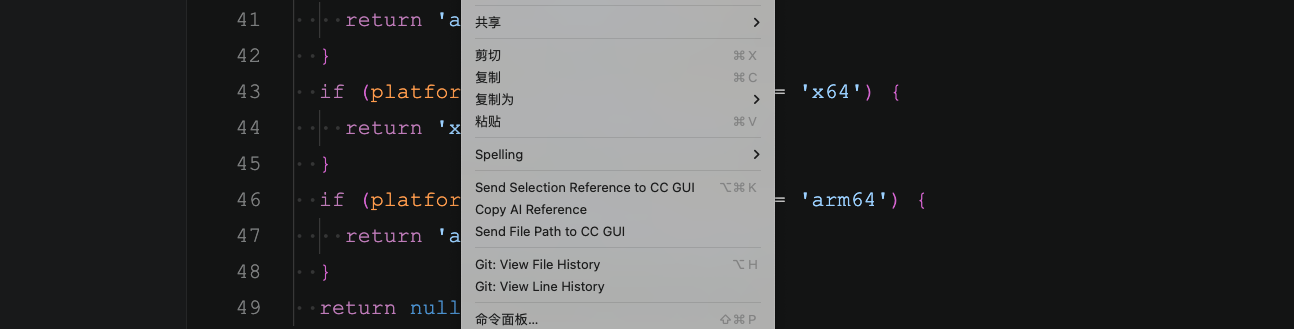 ## Send a selection
1. Select code in the editor
2. Right-click and choose **Send Selection Reference to Claude**
3. Or press `Cmd+Alt+K` (Windows / Linux: `Ctrl+Alt+K`)
The input box inserts:
```text theme={null}
@/absolute/path/file.ts#L12-L40
```
A single-line selection becomes `#L12`. If the selection ends at the start of a line, the end line steps back one line so an empty line is not counted.
With no selection, this command only opens the CC GUI panel.
## Copy an AI reference
Right-click and choose **Copy AI Reference** to copy the same `@path#Lline` to the clipboard, then paste it into another session or tab.
After a successful copy, VS Code shows **AI reference copied**.
## Send a file path
These places can send a file path into the input box:
* Editor context menu
* Editor title context menu
* Explorer context menu (multi-select works)
The command is **Send File Path to Claude**. Multiple files become multiple `@path` mentions.
Dragging a file from Explorer into the input box is similar: a regular file becomes a path mention, and an image becomes an attachment.
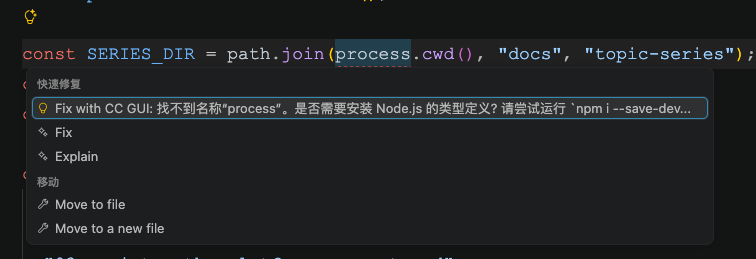
## Quick Fix
When a file has diagnostics (red or yellow squiggles):
1. Click the light bulb
2. Choose **Fix with Claude: …**
3. Or press `Cmd+Shift+Q` (Windows / Linux: `Ctrl+Shift+Q`)
CC GUI opens the panel and inserts a prompt that includes:
* The diagnostic text
* The file and range
* Other Quick Fixes already in the editor
The model then proposes a change. The shortcut works when the editor has focus. If the current file has no diagnostics, nothing is inserted.
## Send a selection
1. Select code in the editor
2. Right-click and choose **Send Selection Reference to Claude**
3. Or press `Cmd+Alt+K` (Windows / Linux: `Ctrl+Alt+K`)
The input box inserts:
```text theme={null}
@/absolute/path/file.ts#L12-L40
```
A single-line selection becomes `#L12`. If the selection ends at the start of a line, the end line steps back one line so an empty line is not counted.
With no selection, this command only opens the CC GUI panel.
## Copy an AI reference
Right-click and choose **Copy AI Reference** to copy the same `@path#Lline` to the clipboard, then paste it into another session or tab.
After a successful copy, VS Code shows **AI reference copied**.
## Send a file path
These places can send a file path into the input box:
* Editor context menu
* Editor title context menu
* Explorer context menu (multi-select works)
The command is **Send File Path to Claude**. Multiple files become multiple `@path` mentions.
Dragging a file from Explorer into the input box is similar: a regular file becomes a path mention, and an image becomes an attachment.
## Quick Fix
When a file has diagnostics (red or yellow squiggles):
1. Click the light bulb
2. Choose **Fix with Claude: …**
3. Or press `Cmd+Shift+Q` (Windows / Linux: `Ctrl+Shift+Q`)
CC GUI opens the panel and inserts a prompt that includes:
* The diagnostic text
* The file and range
* Other Quick Fixes already in the editor
The model then proposes a change. The shortcut works when the editor has focus. If the current file has no diagnostics, nothing is inserted.
 ## Auto-sync the current file
The VS Code setting `ccGui.autoSyncActiveFile` is on by default: when the active editor file changes, the path is synced to the chat.
CC GUI **Settings → General → Behavior → Send the open file path** controls whether selecting a file in Explorer inserts the path automatically. Do not mix the two.
## Related commands
For the full command and shortcut list, see [Commands and shortcuts](/en/vscode/ide/commands).
## Auto-sync the current file
The VS Code setting `ccGui.autoSyncActiveFile` is on by default: when the active editor file changes, the path is synced to the chat.
CC GUI **Settings → General → Behavior → Send the open file path** controls whether selecting a file in Explorer inserts the path automatically. Do not mix the two.
## Related commands
For the full command and shortcut list, see [Commands and shortcuts](/en/vscode/ide/commands).