> ## Documentation Index
> Fetch the complete documentation index at: https://docs.mossx.ai/llms.txt
> Use this file to discover all available pages before exploring further.
# MCP
> Add, import, and manage Model Context Protocol servers so the model can call external tools.
MCP (Model Context Protocol) lets the model call external tools and data sources safely, such as fetching a page, looking up docs, or querying a database.
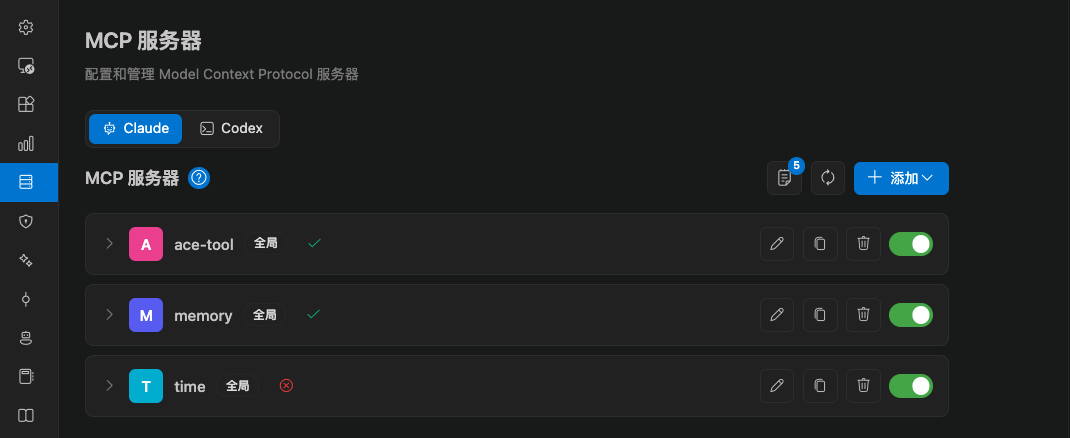
In CC GUI, open **Settings → MCP servers**. Full capability is centered on Claude Code.
 ## Add a server
Click **Add**. There are three paths.
### Manual config
Paste MCP Servers JSON. Prefer `npx` or `uvx` to start a local process.
Two transports:
| Type | How it connects | Example |
| ---------- | --------------------------------- | -------------------------------------------- |
| stdio | stdin / stdout of a local process | `npx -y @modelcontextprotocol/server-memory` |
| HTTP / SSE | Remote URL | Your own MCP service URL |
Scope:
* **Global**: written to `~/.claude.json`, available to all workspaces
* **This workspace only**: applies only to the current workspace
The config will run a command on your computer. Check the source, arguments, and environment variables before you add it.
### Add from the MCP marketplace
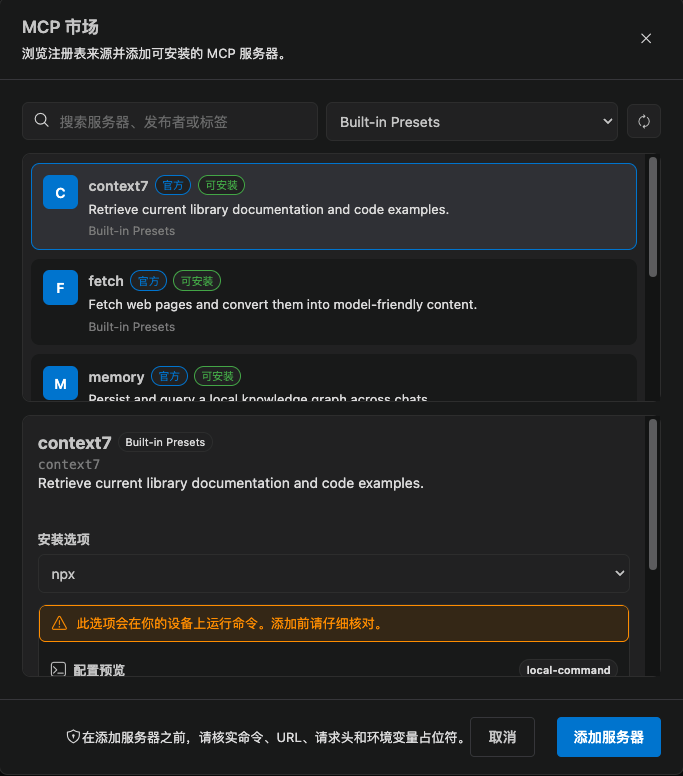
The marketplace lists installable servers by registry. Search by name, publisher, or tag.
* **Installable**: can generate a config directly
* **Browse only**: metadata only. Add it yourself from the repo docs
Before you add one, check the command, URL, headers, and environment-variable placeholders. Unrecognized commands are marked as extra risk.
## Add a server
Click **Add**. There are three paths.
### Manual config
Paste MCP Servers JSON. Prefer `npx` or `uvx` to start a local process.
Two transports:
| Type | How it connects | Example |
| ---------- | --------------------------------- | -------------------------------------------- |
| stdio | stdin / stdout of a local process | `npx -y @modelcontextprotocol/server-memory` |
| HTTP / SSE | Remote URL | Your own MCP service URL |
Scope:
* **Global**: written to `~/.claude.json`, available to all workspaces
* **This workspace only**: applies only to the current workspace
The config will run a command on your computer. Check the source, arguments, and environment variables before you add it.
### Add from the MCP marketplace
The marketplace lists installable servers by registry. Search by name, publisher, or tag.
* **Installable**: can generate a config directly
* **Browse only**: metadata only. Add it yourself from the repo docs
Before you add one, check the command, URL, headers, and environment-variable placeholders. Unrecognized commands are marked as extra risk.
 ### Import from GitHub Copilot
Paste Copilot MCP JSON. The root key is `servers`:
```json theme={null}
{
"servers": {
"my-server": {
"command": "npx",
"args": ["-y", "my-mcp-server"]
}
}
}
```
Preview first, then import. Duplicate names are renamed automatically and marked in the preview.
## Built-in presets
Manual config also includes common presets:
* Fetch web content
* Time and time zones
* Knowledge graph / memory
* Sequential thinking
* Context7 docs lookup
A preset is only a starting point. Still confirm the command and permissions.
## Status and tools
Each server card shows:
| Status | Meaning |
| ----------------- | ---------------------------------------- |
| Connected | Ready |
| Connecting | Handshake in progress |
| Auth required | You still need to sign in or add a token |
| Connection failed | Open the error details and logs |
| Unknown | Detection is not finished |
Open a card to:
* Enable / disable
* View the tool list
* Open connection logs
* Copy the config or the homepage / docs link
* Edit or delete
**Refresh server status** rechecks every server. The tool list uses cache first. Force a refresh when you need the latest data.
## Use it in chat
After a server is enabled and connected, Claude Code picks tools from the task. You do not have to write the call in the input box.
Permissions still follow the current mode. In Default mode, an MCP tool may still ask first. See [Modes and permissions](/en/vscode/chat/modes).
### Import from GitHub Copilot
Paste Copilot MCP JSON. The root key is `servers`:
```json theme={null}
{
"servers": {
"my-server": {
"command": "npx",
"args": ["-y", "my-mcp-server"]
}
}
}
```
Preview first, then import. Duplicate names are renamed automatically and marked in the preview.
## Built-in presets
Manual config also includes common presets:
* Fetch web content
* Time and time zones
* Knowledge graph / memory
* Sequential thinking
* Context7 docs lookup
A preset is only a starting point. Still confirm the command and permissions.
## Status and tools
Each server card shows:
| Status | Meaning |
| ----------------- | ---------------------------------------- |
| Connected | Ready |
| Connecting | Handshake in progress |
| Auth required | You still need to sign in or add a token |
| Connection failed | Open the error details and logs |
| Unknown | Detection is not finished |
Open a card to:
* Enable / disable
* View the tool list
* Open connection logs
* Copy the config or the homepage / docs link
* Edit or delete
**Refresh server status** rechecks every server. The tool list uses cache first. Force a refresh when you need the latest data.
## Use it in chat
After a server is enabled and connected, Claude Code picks tools from the task. You do not have to write the call in the input box.
Permissions still follow the current mode. In Default mode, an MCP tool may still ask first. See [Modes and permissions](/en/vscode/chat/modes).