> ## Documentation Index
> Fetch the complete documentation index at: https://docs.mossx.ai/llms.txt
> Use this file to discover all available pages before exploring further.
# Input box
> Use @, /, #, and ! completions to send files, images, and prompts.
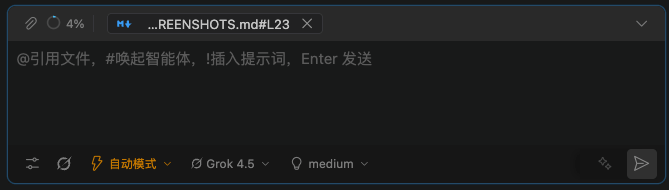
The input box is where you give the model instructions. The placeholder lists the full set of features:
```text theme={null}
@ mention a file, # pick an agent, ! insert a prompt, Enter to send
```
 ## Send and newline
**Settings → General → Behavior** has two send styles:
| Option | Send | Newline |
| -------------------- | --------------------------- | ------------- |
| Enter to send | `Enter` | `Shift+Enter` |
| ⌘/Ctrl+Enter to send | `Cmd+Enter` or `Ctrl+Enter` | `Enter` |
While generating, the send button becomes Stop. For longer messages the input box grows with the text. You can also drag the edge to change the height.
## Four completions
Type a trigger in the input box to open completions.
### `@` mention a file
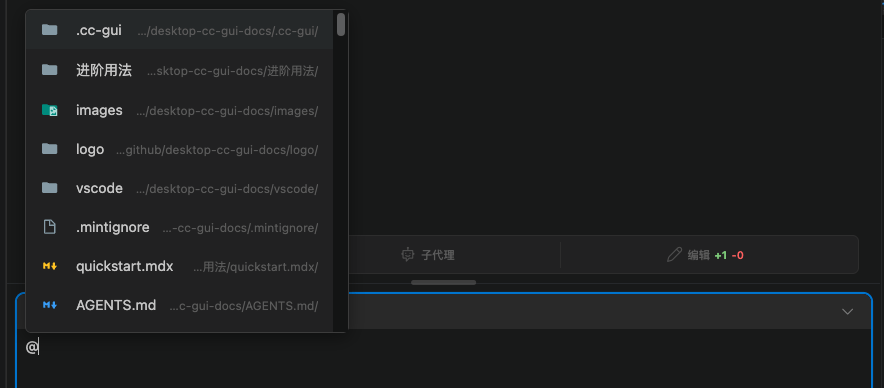
Type `@` to search workspace files or folders. After you pick one, it becomes a file chip. The model receives the path, not the whole file.
You can also write a line-range mention:
```text theme={null}
@src/extension.ts#L14-L40
```
Mentions sent from an editor selection or Explorer use the same format. See [Editor integration](/en/vscode/ide/editor).
## Send and newline
**Settings → General → Behavior** has two send styles:
| Option | Send | Newline |
| -------------------- | --------------------------- | ------------- |
| Enter to send | `Enter` | `Shift+Enter` |
| ⌘/Ctrl+Enter to send | `Cmd+Enter` or `Ctrl+Enter` | `Enter` |
While generating, the send button becomes Stop. For longer messages the input box grows with the text. You can also drag the edge to change the height.
## Four completions
Type a trigger in the input box to open completions.
### `@` mention a file
Type `@` to search workspace files or folders. After you pick one, it becomes a file chip. The model receives the path, not the whole file.
You can also write a line-range mention:
```text theme={null}
@src/extension.ts#L14-L40
```
Mentions sent from an editor selection or Explorer use the same format. See [Editor integration](/en/vscode/ide/editor).
 ### `/` slash commands
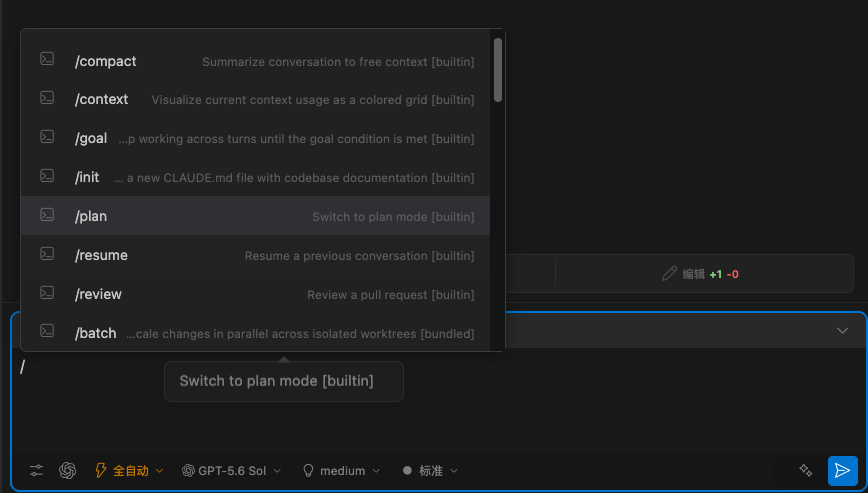
Type `/` to list commands from the current runtime. The extension merges the SDK list with local commands.
These local commands are always available:
| Command | What it does |
| -------- | ---------------------------------------------- |
| `/clear` | Clear the current chat and start a new session |
| `/new` | Same as `/clear` |
| `/reset` | Same as `/clear` |
`/compact` comes from the Claude runtime and compresses context.
Some commands work only with certain providers. If the runtime is wrong, the UI says it is only supported by a specific provider.
### `/` slash commands
Type `/` to list commands from the current runtime. The extension merges the SDK list with local commands.
These local commands are always available:
| Command | What it does |
| -------- | ---------------------------------------------- |
| `/clear` | Clear the current chat and start a new session |
| `/new` | Same as `/clear` |
| `/reset` | Same as `/clear` |
`/compact` comes from the Claude runtime and compresses context.
Some commands work only with certain providers. If the runtime is wrong, the UI says it is only supported by a specific provider.
 ### `#` pick an agent
Type `#` to choose a configured agent. After you pick one, that agent's system prompt is applied to later turns.
Create, import, or export agents in **Settings → Agents**. See [Agents and the prompt library](/en/vscode/customize/agents-prompts).
### `!` insert a prompt
Type `!` to open the prompt library. After you pick one, the template is inserted at the cursor. You can edit it before you send.
Maintain prompts in **Settings → Prompt library**.
## Attachments, paste, and drag and drop
The input box accepts:
* File paths dragged from Explorer
* Images dragged or pasted (JPEG, PNG, GIF, WebP, SVG)
* Code mentions generated from an editor selection
Images show a thumbnail. You can remove them before send. When you reopen a history session, CLIs such as Grok try to restore the attachments from that time.
When **Send the open file path** is on (the default), a file you select in Explorer becomes a path mention. The file contents are not uploaded automatically.
## Bottom selectors
From left to right under the input box you usually see:
1. **Config / process**: inspect the current daemon and restart it if needed
2. **Provider**: Claude Code, Codex, Grok, Kimi, OpenCode, Pi
3. **Model**: models for the current provider
4. **Mode**: Default, Plan, Agent, Auto
5. **Attach / Stop / Send**
Claude Code also has extra switches such as reasoning strength. Codex has Fast mode. CLI providers do not offer plan mode.
## Message queue
You can type the next message while the previous turn is still generating. Queued messages send automatically when the current turn ends.
Use this when you want it to change A first, then also change B.
## Prompt enhancer
The input toolbar can rewrite the current draft before you send. Choose the provider and model in **Settings → Prompt enhancer**. See [Prompt enhancer](/en/vscode/customize/prompt-enhancer).
## History input completion
If you turn on **Settings → Other → History input completion**, typing suggests earlier inputs. Press `Tab` to accept.
On the same page you can add, delete, and change importance. Higher importance ranks a suggestion higher.
### `#` pick an agent
Type `#` to choose a configured agent. After you pick one, that agent's system prompt is applied to later turns.
Create, import, or export agents in **Settings → Agents**. See [Agents and the prompt library](/en/vscode/customize/agents-prompts).
### `!` insert a prompt
Type `!` to open the prompt library. After you pick one, the template is inserted at the cursor. You can edit it before you send.
Maintain prompts in **Settings → Prompt library**.
## Attachments, paste, and drag and drop
The input box accepts:
* File paths dragged from Explorer
* Images dragged or pasted (JPEG, PNG, GIF, WebP, SVG)
* Code mentions generated from an editor selection
Images show a thumbnail. You can remove them before send. When you reopen a history session, CLIs such as Grok try to restore the attachments from that time.
When **Send the open file path** is on (the default), a file you select in Explorer becomes a path mention. The file contents are not uploaded automatically.
## Bottom selectors
From left to right under the input box you usually see:
1. **Config / process**: inspect the current daemon and restart it if needed
2. **Provider**: Claude Code, Codex, Grok, Kimi, OpenCode, Pi
3. **Model**: models for the current provider
4. **Mode**: Default, Plan, Agent, Auto
5. **Attach / Stop / Send**
Claude Code also has extra switches such as reasoning strength. Codex has Fast mode. CLI providers do not offer plan mode.
## Message queue
You can type the next message while the previous turn is still generating. Queued messages send automatically when the current turn ends.
Use this when you want it to change A first, then also change B.
## Prompt enhancer
The input toolbar can rewrite the current draft before you send. Choose the provider and model in **Settings → Prompt enhancer**. See [Prompt enhancer](/en/vscode/customize/prompt-enhancer).
## History input completion
If you turn on **Settings → Other → History input completion**, typing suggests earlier inputs. Press `Tab` to accept.
On the same page you can add, delete, and change importance. Higher importance ranks a suggestion higher.