> ## Documentation Index
> Fetch the complete documentation index at: https://docs.mossx.ai/llms.txt
> Use this file to discover all available pages before exploring further.
# Learn the interface
> Walk the desktop window by area: Home, Extensions, sessions, chat, file tree, Git, terminal, search, and Settings.
The desktop app is a full window, not a plugin sidebar. Learn where things live first. How to use each area is on the pages that follow.
## Home
Launch opens Home. You can:
* Search or pick an existing project
* **Add project**
* See branch / worktree info
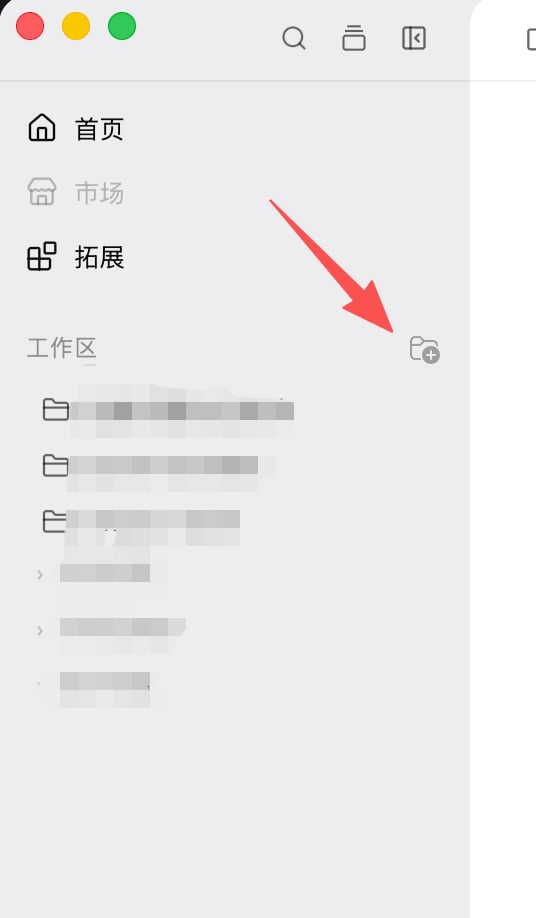 Selecting a project opens the main window.
## Extensions
In the left bar, click **Extensions** (same level as **Home**). The center becomes a top bar: Usage, AI frameworks, Skills, Mcps, and more.
Selecting a project opens the main window.
## Extensions
In the left bar, click **Extensions** (same level as **Home**). The center becomes a top bar: Usage, AI frameworks, Skills, Mcps, and more.
 Usage opens by default. You can keep managing Skills / Mcps. The other top-bar entries are not shipped yet.
Details: [Extensions](/en/desktop/extensions).
## Main window
Typical layout, left to right:
| Area | What it is |
| -------------- | -------------------------------------------------------- |
| Sidebar | Session list, project switcher |
| Center | Chat canvas and input |
| Right / bottom | File tree, Git, terminal, search, Plan, and other panels |
| Top bar | Search, Settings, window controls |
Usage opens by default. You can keep managing Skills / Mcps. The other top-bar entries are not shipped yet.
Details: [Extensions](/en/desktop/extensions).
## Main window
Typical layout, left to right:
| Area | What it is |
| -------------- | -------------------------------------------------------- |
| Sidebar | Session list, project switcher |
| Center | Chat canvas and input |
| Right / bottom | File tree, Git, terminal, search, Plan, and other panels |
| Top bar | Search, Settings, window controls |
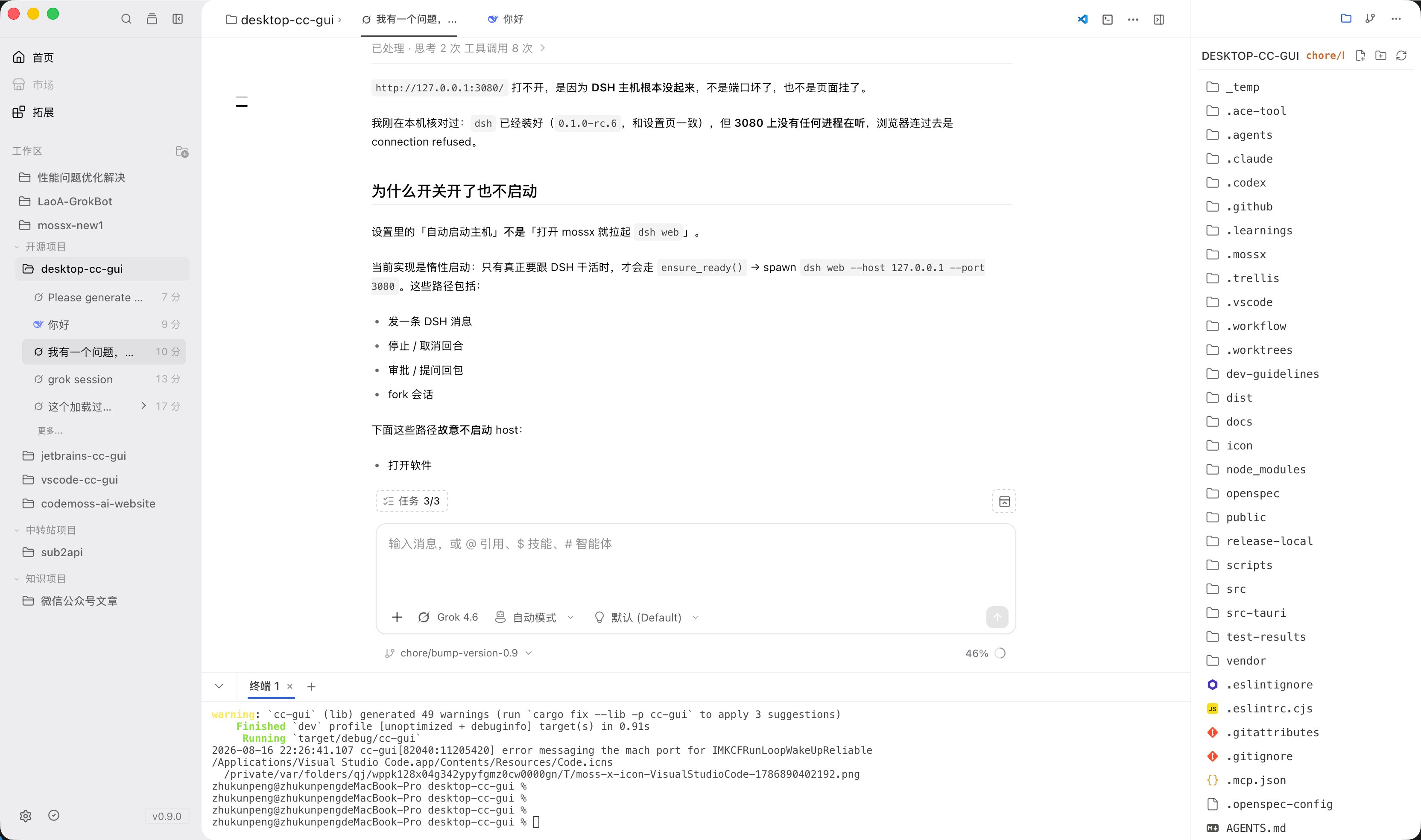 You can drag panel width and height. The layout is remembered.
The next sections look at each area.
## Session list
The left sidebar lists sessions for the current workspace. You can search, star, rename, delete, or start a new session.
You can drag panel width and height. The layout is remembered.
The next sections look at each area.
## Session list
The left sidebar lists sessions for the current workspace. You can search, star, rename, delete, or start a new session.
 Details: [Sessions and history](/en/desktop/chat/sessions).
## Chat canvas
The center is the current session: messages, thinking, tool calls, and diffs. The input sits at the bottom.
Details: [Sessions and history](/en/desktop/chat/sessions).
## Chat canvas
The center is the current session: messages, thinking, tool calls, and diffs. The input sits at the bottom.
 The bottom of the input switches provider, model, and mode.
 Details: [Chat area](/en/desktop/chat/overview) and [Input](/en/desktop/chat/input). Permission modes: [Modes and permissions](/en/desktop/chat/modes).
## File tree
Browse files in the current workspace. You can preview, rename, or drag a file into the input.
Details: [Chat area](/en/desktop/chat/overview) and [Input](/en/desktop/chat/input). Permission modes: [Modes and permissions](/en/desktop/chat/modes).
## File tree
Browse files in the current workspace. You can preview, rename, or drag a file into the input.
 Details: [Workspace and panels](/en/desktop/workspace/overview).
## Git panel
Review changes, stage, commit, and browse branches and history. You can also generate a commit message with AI.
Details: [Workspace and panels](/en/desktop/workspace/overview).
## Git panel
Review changes, stage, commit, and browse branches and history. You can also generate a commit message with AI.
 Details: [Git and commit](/en/desktop/workspace/git).
## Terminal
Open a terminal inside the app so you do not switch to an external window. Use it to run commands while you watch AI output.
Details: [Git and commit](/en/desktop/workspace/git).
## Terminal
Open a terminal inside the app so you do not switch to an external window. Use it to run commands while you watch AI output.
 Details: [Workspace and panels](/en/desktop/workspace/overview).
## Global search
One search box covers files, sessions, history messages, skills, and commands.
Details: [Workspace and panels](/en/desktop/workspace/overview).
## Global search
One search box covers files, sessions, history messages, skills, and commands.
 Details: [Workspace and panels](/en/desktop/workspace/overview).
## Settings
After you open Settings, entries are on the left and the matching form is on the right. Providers and CLIs live under **CLI configuration**.
Details: [Workspace and panels](/en/desktop/workspace/overview).
## Settings
After you open Settings, entries are on the left and the matching form is on the right. Providers and CLIs live under **CLI configuration**.
 Full map: [Settings overview](/en/desktop/settings/overview).
## Next steps
Messages, thinking, tool calls, and status.
`@`, `/`, attachments, and the bottom pickers.
File tree, terminal, search, and Plan.
Changes, commits, and AI commit messages.
Usage, Skills, and MCP.
Full map: [Settings overview](/en/desktop/settings/overview).
## Next steps
Messages, thinking, tool calls, and status.
`@`, `/`, attachments, and the bottom pickers.
File tree, terminal, search, and Plan.
Changes, commits, and AI commit messages.
Usage, Skills, and MCP.