> ## Documentation Index
> Fetch the complete documentation index at: https://docs.mossx.ai/llms.txt
> Use this file to discover all available pages before exploring further.
# Download and install
> Install the CC GUI desktop app from GitHub Releases.
The CC GUI desktop app ships as a standalone app named **ccgui**. The repo is [desktop-cc-gui](https://github.com/zhukunpenglinyutong/desktop-cc-gui).
## Prerequisites
* macOS 10.13+ / Windows 10+ (with WebView2) / a recent Linux distro
* Access to [GitHub Releases](https://github.com/zhukunpenglinyutong/desktop-cc-gui/releases)
* Before you chat, you need at least one working AI runtime (Claude, Codex, Kimi, Grok, OpenCode, Pi, or DeepSeek Harness)
## Download the installer
On the Releases page, download the package for your platform:
| Platform | Package |
| --------------------- | ----------------------- |
| macOS (Apple Silicon) | `aarch64.dmg` |
| macOS (Intel) | `x64.dmg` |
| Windows | `.exe` (NSIS) installer |
| Linux | `.AppImage` |
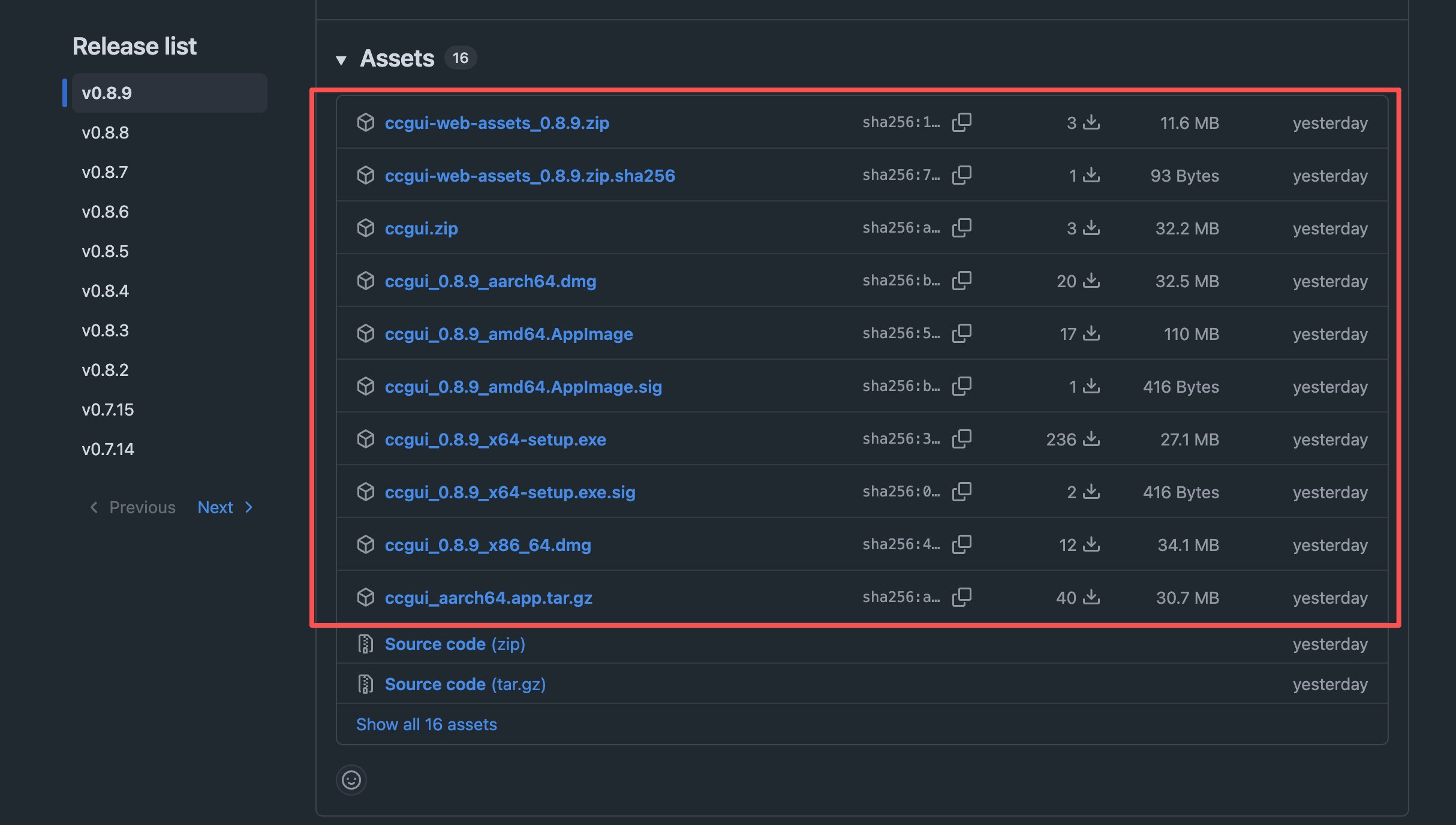 Download URL:
[https://github.com/zhukunpenglinyutong/desktop-cc-gui/releases](https://github.com/zhukunpenglinyutong/desktop-cc-gui/releases)
## Install
1. Open the `.dmg`
2. Drag **ccgui** into **Applications**
3. Open it from Launchpad or Applications
1. Run the NSIS `.exe` installer
2. Finish the wizard
3. Open **ccgui** from the Start menu
1. Make the AppImage executable: `chmod +x *.AppImage`
2. Double-click it or run it from a terminal
## Confirm the install
After you open the app you should see:
* The home / workspace picker
* A way into Settings to configure providers
* A version number in Settings or About
The app supports in-app auto-update. When a new version is available, it prompts you to download and install.
## Next steps
Install only puts the app on this machine. To send a message, continue with [Prepare your environment](/en/desktop/start/setup): check the runtime, configure a provider, and add a project folder.
Download URL:
[https://github.com/zhukunpenglinyutong/desktop-cc-gui/releases](https://github.com/zhukunpenglinyutong/desktop-cc-gui/releases)
## Install
1. Open the `.dmg`
2. Drag **ccgui** into **Applications**
3. Open it from Launchpad or Applications
1. Run the NSIS `.exe` installer
2. Finish the wizard
3. Open **ccgui** from the Start menu
1. Make the AppImage executable: `chmod +x *.AppImage`
2. Double-click it or run it from a terminal
## Confirm the install
After you open the app you should see:
* The home / workspace picker
* A way into Settings to configure providers
* A version number in Settings or About
The app supports in-app auto-update. When a new version is available, it prompts you to download and install.
## Next steps
Install only puts the app on this machine. To send a message, continue with [Prepare your environment](/en/desktop/start/setup): check the runtime, configure a provider, and add a project folder.