> ## Documentation Index
> Fetch the complete documentation index at: https://docs.mossx.ai/llms.txt
> Use this file to discover all available pages before exploring further.
# 下载安装
> 从 GitHub Releases 安装 CC GUI 客户端。
CC GUI 客户端以独立桌面应用发布,应用名是 **ccgui**,仓库是 [desktop-cc-gui](https://github.com/zhukunpenglinyutong/desktop-cc-gui)。
## 前提条件
* macOS 10.13+ / Windows 10+(含 WebView2)/ 较新的 Linux 发行版
* 能访问 [GitHub Releases](https://github.com/zhukunpenglinyutong/desktop-cc-gui/releases)
* 真正开始对话前,需要至少一个可用的 AI runtime(Claude、Codex、Kimi、Grok、OpenCode、Pi 或 DeepSeek Harness)
## 下载安装包
去 Releases 页面下载对应平台的安装包:
| 平台 | 安装包 |
| -------------------- | --------------- |
| macOS(Apple Silicon) | `aarch64.dmg` |
| macOS(Intel) | `x64.dmg` |
| Windows | `.exe`(NSIS)安装包 |
| Linux | `.AppImage` |
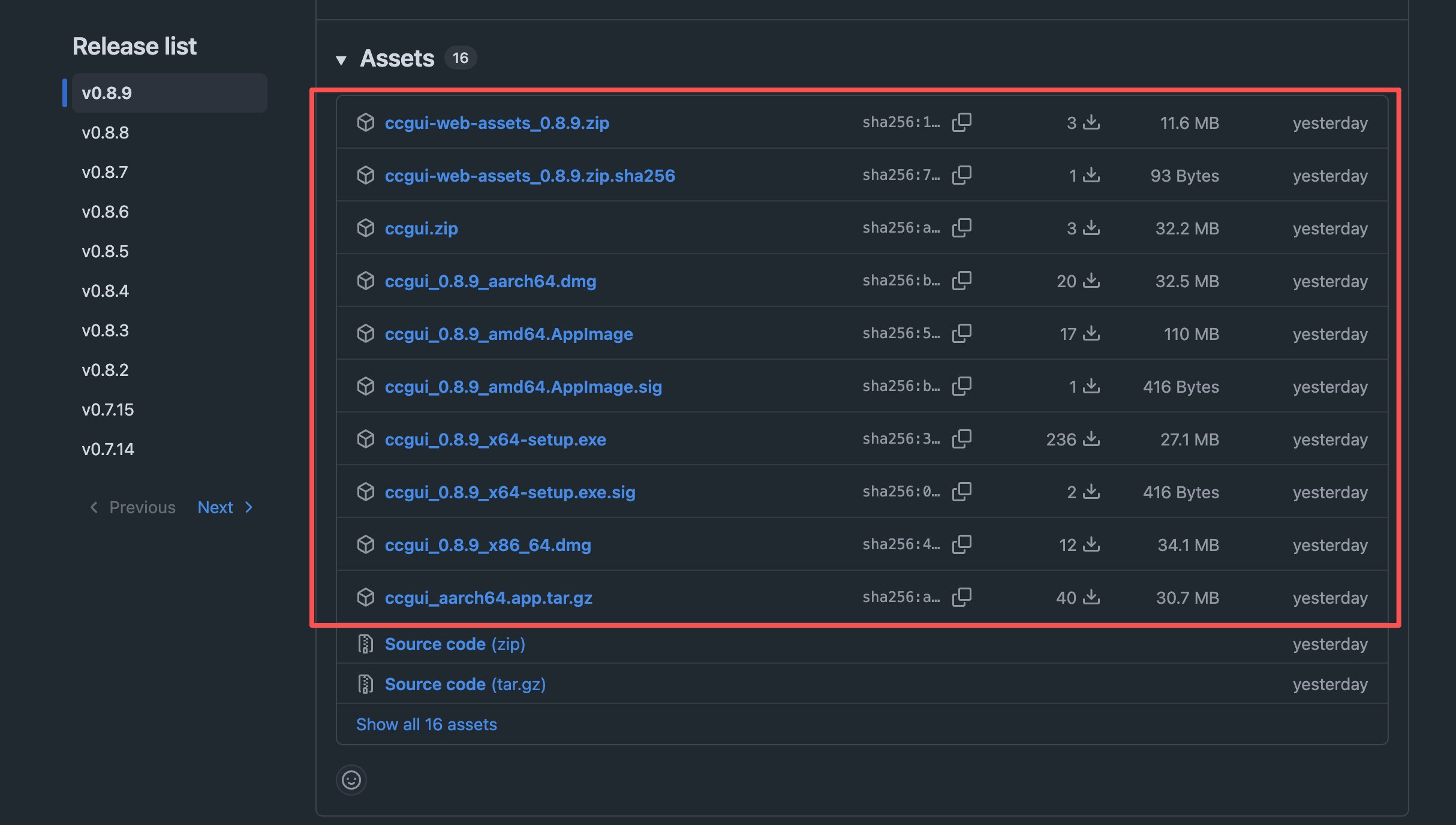 安装包地址:
[https://github.com/zhukunpenglinyutong/desktop-cc-gui/releases](https://github.com/zhukunpenglinyutong/desktop-cc-gui/releases)
## 安装步骤
1. 打开 `.dmg`
2. 把 **ccgui** 拖进 **Applications**
3. 从启动台或 Applications 打开
1. 运行 NSIS `.exe` 安装包
2. 按向导完成安装
3. 从开始菜单打开 **ccgui**
1. 给 AppImage 加执行权限:`chmod +x *.AppImage`
2. 双击或在终端运行
## 确认安装成功
打开后你会看到:
* 首页 / 工作区选择界面
* 可进入设置配置供应商
* 版本号可在设置或关于信息里查看
客户端支持应用内自动更新。有新版本时会提示下载安装。
## 下一步
安装只把应用装到本机。要真正发出消息,继续 [准备环境](/desktop/start/setup):检查 runtime、配供应商,并添加一个项目文件夹。
安装包地址:
[https://github.com/zhukunpenglinyutong/desktop-cc-gui/releases](https://github.com/zhukunpenglinyutong/desktop-cc-gui/releases)
## 安装步骤
1. 打开 `.dmg`
2. 把 **ccgui** 拖进 **Applications**
3. 从启动台或 Applications 打开
1. 运行 NSIS `.exe` 安装包
2. 按向导完成安装
3. 从开始菜单打开 **ccgui**
1. 给 AppImage 加执行权限:`chmod +x *.AppImage`
2. 双击或在终端运行
## 确认安装成功
打开后你会看到:
* 首页 / 工作区选择界面
* 可进入设置配置供应商
* 版本号可在设置或关于信息里查看
客户端支持应用内自动更新。有新版本时会提示下载安装。
## 下一步
安装只把应用装到本机。要真正发出消息,继续 [准备环境](/desktop/start/setup):检查 runtime、配供应商,并添加一个项目文件夹。